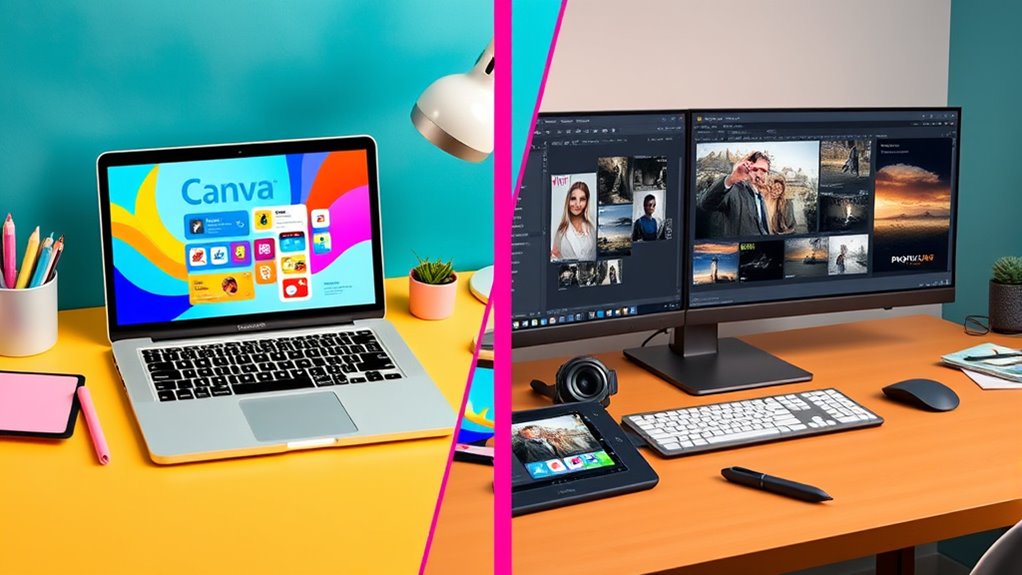

If you want quick, easy branding with ready-made templates and minimal design skills, Canva is your best choice. It’s perfect for creating social media posts, presentations, and marketing materials fast. But if you need detailed, professional-quality images with precise control, Photoshop is key. It takes more time and expertise but offers endless customization options. To find out which tool suits your needs best, explore the differences further below.

Get workout gear delivered free — and shop member deals
- Fast, free delivery on millions of items
- Access to Prime Big Deal Days deals on October 6–7
- Prime Video, Amazon Music and more included
Key Takeaways
- Canva is ideal for quick, professional-looking designs with minimal skill, while Photoshop offers detailed, customizable editing for experienced users.
- Use Canva for fast social media posts, presentations, and branding, whereas Photoshop is better for high-resolution, complex image manipulation.
- Canva’s user-friendly interface and templates suit small businesses and marketers seeking efficiency; Photoshop’s steep learning curve benefits professional designers.
- Canva provides limited design control but ensures consistency; Photoshop allows granular adjustments for bespoke, highly detailed assets.
- Choose Canva for speed and simplicity; opt for Photoshop when precision, advanced features, and customization are priorities.
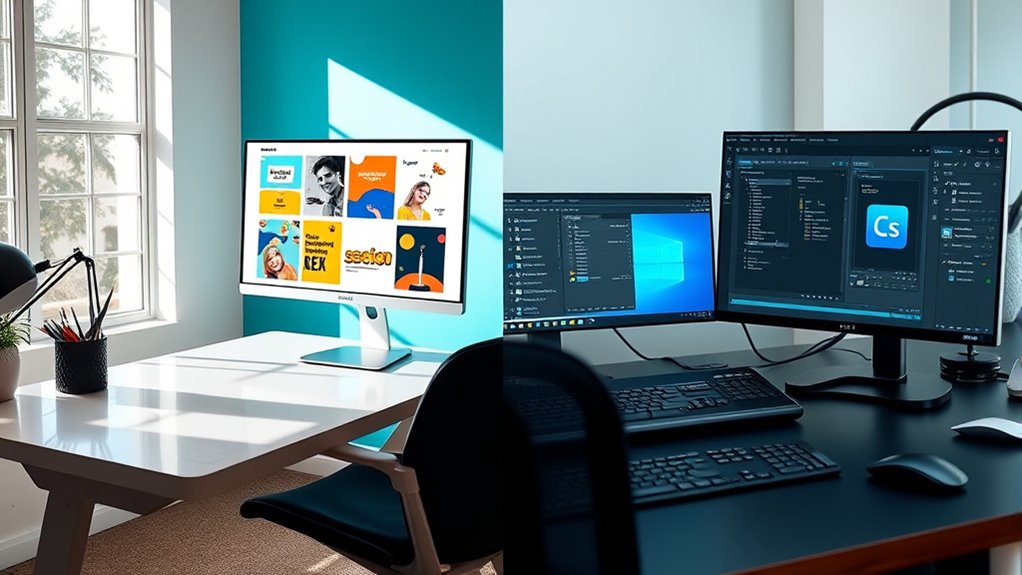
When choosing between Canva and Photoshop, understanding their core differences can help you decide which tool best suits your needs. One of the key aspects to consider is how each platform supports your branding strategies. Canva excels at enabling quick, cohesive branding by offering templates and easy-to-customize elements that help maintain brand consistency across multiple projects. Its library of pre-designed layouts, fonts, and images allows you to quickly craft visuals that align with your brand identity without needing advanced design skills. Photoshop, on the other hand, offers a level of precision and control that’s ideal for creating highly customized branding assets. You can manipulate images at the pixel level, design intricate logos, and fine-tune every detail to perfectly match your brand’s vision.
Another major consideration is the user interface. Canva’s interface is straightforward and user-friendly, making it accessible even for beginners. Its drag-and-drop functionality simplifies the design process, so you can focus on your ideas rather than figuring out complex tools. You don’t need prior experience to start creating polished visuals, which makes Canva a popular choice for small businesses, social media managers, and marketers who need quick results. Photoshop’s interface is more complex, reflecting its advanced capabilities. It has a steep learning curve, with a multitude of tools and options that can initially overwhelm new users. However, once you get familiar with Photoshop, you gain extensive control over your designs, allowing for detailed editing, advanced effects, and professional-level output.
If your priority is speed and ease of use, Canva is likely the better fit. Its simplified interface and ready-made templates let you produce high-quality visuals rapidly, perfect for social media posts, presentations, and marketing materials. If your focus is on creating highly detailed, bespoke images or refining your branding assets at a granular level, Photoshop’s more sophisticated interface will serve you better. It requires more time and effort to master, but it offers the flexibility and precision that professional designers often need. Additionally, understanding the Free Floating concept can help you better utilize these tools for various creative projects.
best social media graphic design tools
As an affiliate, we earn on qualifying purchases.
As an affiliate, we earn on qualifying purchases.
Frequently Asked Questions
Can Canva Replace Photoshop for Professional Photo Editing?
Canva can’t fully replace Photoshop for professional photo editing, especially if you need high photo quality and advanced tools. Canva’s user interface is simple and beginner-friendly, making it great for quick designs, but it lacks the depth of Photoshop’s features. If you require precise control and complex edits, Photoshop is the better choice. For basic edits and casual projects, Canva can suffice, but it’s not a complete substitute for professional work.
Which Software Offers Better Collaboration Features?
Wondering which software offers better collaboration features? You’ll find Canva excels here, enabling real-time collaboration and cloud-based sharing that makes teamwork seamless. With Canva, you can invite others to edit designs instantly, see changes live, and access your projects from anywhere. Photoshop, on the other hand, lacks these built-in collaboration tools, making Canva the clear choice if teamwork and easy sharing matter most to you.
Is Canva Suitable for Creating Print-Ready Designs?
Yes, Canva can be suitable for creating print-ready designs, especially if you prioritize ease of use and quick results. It offers decent print quality for many projects and allows you to export your designs in high resolution. However, if you need extensive design flexibility and precise control over print quality, Photoshop might be better. Canva is ideal for simple, straightforward prints, while Photoshop is better for complex, professional print projects.
How Steep Is the Learning Curve for Photoshop?
You might think Photoshop’s learning curve is steep, but it’s manageable once you get familiar with its user interface and editing complexity. At first, it can feel overwhelming, especially with advanced tools, but practice makes perfect. Many users find that dedicating time to tutorials helps you discover its full potential. So, don’t be discouraged—your skills will grow quickly as you explore more features and gain confidence.
Are There Any Mobile App Limitations for Canva and Photoshop?
You’ll notice some mobile restrictions with Canva and Photoshop that affect app functionality. Canva’s mobile app is user-friendly but offers limited advanced features compared to the desktop version, which might restrict complex designs. Photoshop’s mobile app provides core editing tools but lacks the full range of features found on desktop, limiting your ability to perform detailed edits on the go. Both apps work well for casual editing, but professional work may require desktop access.
professional photo editing software
As an affiliate, we earn on qualifying purchases.
As an affiliate, we earn on qualifying purchases.
Conclusion
Ultimately, choosing between Canva and Photoshop depends on your needs. If you want quick, user-friendly design like a trusty typewriter, Canva’s your go-to. But if you crave full creative control like a master painter wielding a brush, Photoshop’s the way to go. Think of Canva as your modern, sleek smartphone—easy and accessible—while Photoshop is the vintage film camera, offering depth and detail for those willing to learn. Pick what fits your project best!
branding templates for small business
As an affiliate, we earn on qualifying purchases.
As an affiliate, we earn on qualifying purchases.
high-resolution image editing software
As an affiliate, we earn on qualifying purchases.
As an affiliate, we earn on qualifying purchases.
Fall Picks
fall essentials
As an affiliate, we earn on qualifying purchases.