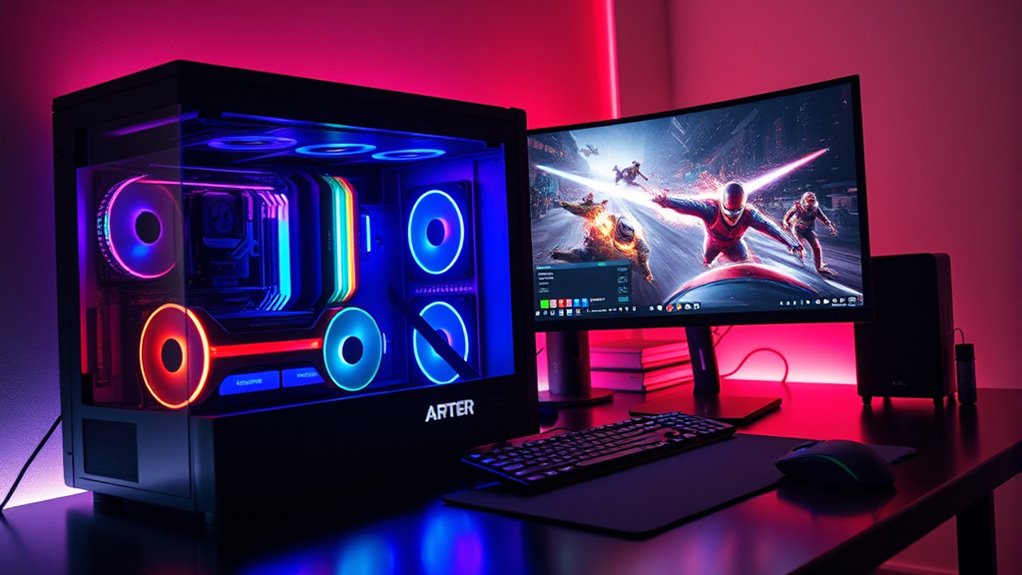

To boost your gaming PC’s performance for smoother gameplay, consider overclocking your CPU, GPU, and RAM carefully with reliable tools while monitoring temperatures closely. Improve cooling solutions to handle extra heat and prevent thermal throttling. Adjust game settings by lowering graphics quality, resolution, and disabling unnecessary features for better frame rates. Keep your system clean, update drivers regularly, and test stability after each change. Want to optimize your setup further? There’s more to uncover.

Get workout gear delivered free — and shop member deals
- Fast, free delivery on millions of items
- Access to Prime Big Deal Days deals on October 6–7
- Prime Video, Amazon Music and more included
Key Takeaways
- Overclock your CPU, GPU, and RAM carefully, ensuring proper cooling and stability testing.
- Optimize game settings by lowering graphics quality, resolution, and disabling unnecessary features.
- Keep your system clean and dust-free to maintain optimal hardware performance.
- Regularly update drivers and system software for improved stability and efficiency.
- Monitor temperatures and performance metrics to prevent overheating and ensure smooth gameplay.
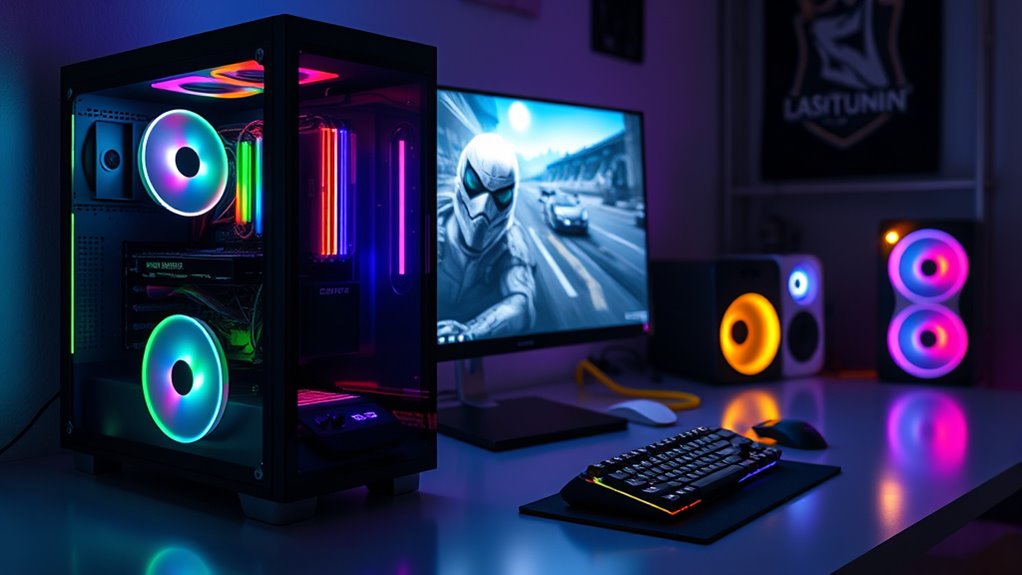
If you want smoother gameplay and better graphics, boosting your gaming PC’s performance is vital. One effective way to do this is by overclocking hardware. Overclocking involves pushing your CPU, GPU, and RAM beyond their factory settings to achieve higher performance. Before you start, make sure your cooling system can handle the extra heat, as overclocking generates more thermal energy. Use reliable software tools provided by your hardware manufacturer or third-party programs to gradually increase clock speeds. Monitor temperatures closely to prevent overheating, and test stability after each adjustment. Overclocking can considerably improve frame rates and reduce lag, making your gaming experience more seamless.
Alongside overclocking, optimizing game settings plays a fundamental role in boosting performance. Many modern games offer a variety of graphics options such as texture quality, shadows, anti-aliasing, and resolution. Lowering some of these settings can drastically improve frame rates without sacrificing too much visual fidelity. For instance, reducing shadow quality or turning off motion blur can free up GPU resources, leading to smoother gameplay. It’s also worthwhile to enable features like V-Sync or G-Sync if your monitor supports them, as they help eliminate screen tearing and provide a more stable image. Additionally, setting the game’s resolution to a slightly lower level can make a big difference in performance, especially if your hardware struggles at higher resolutions.
Combining overclocking with optimized game settings creates a powerful synergy for boosting your PC’s gaming capabilities. Once you’ve safely overclocked your hardware, tweaking game settings to match your system’s new potential ensures you get the most out of your upgrades. Keep in mind that every system is different, so it’s essential to find the right balance between performance and visual quality through trial and error. Regularly updating your graphics drivers and system software can also improve stability and performance. Don’t forget to keep your PC clean and well-maintained, as dust buildup and outdated drivers can hinder your hardware’s efficiency. Additionally, considering energy-efficient hardware upgrades can further enhance your system’s sustainability and long-term performance.
As an affiliate, we earn on qualifying purchases.
Frequently Asked Questions
How Often Should I Update My GPU Drivers?
You should update your GPU drivers whenever a new version is released, ideally every few months, to guarantee peak software compatibility and performance. Regular driver updates fix bugs, improve stability, and enhance game compatibility. Keep an eye on your GPU manufacturer’s website or use their software tools to check for updates automatically. Staying current helps prevent issues and ensures you get the best possible gaming experience.
Can Overclocking Damage My Gaming PC?
Overclocking does carry risks, including potential hardware damage if not done carefully. Pushing your components beyond their limits can generate excessive heat and stress, which may affect hardware longevity. However, with proper cooling and gradual adjustments, you can minimize these risks. Always monitor temperatures and stability, and remember that aggressive overclocking can shorten your PC’s lifespan, so proceed cautiously to enjoy improved performance without damaging your system.
What’s the Ideal Cooling System for High-Performance Gaming?
For high-performance gaming, liquid cooling is ideal because it efficiently keeps your CPU and GPU cool under heavy loads, reducing thermal throttling. However, air cooling can also work well if you choose quality fans and heatsinks, offering easier installation and maintenance. Consider your space, budget, and noise preferences when deciding. Both systems can deliver excellent cooling, but liquid cooling tends to provide better thermal performance for intense gaming sessions.
How Does RAM Capacity Affect Gaming Performance?
Increasing RAM capacity helps improve gaming performance by reducing memory bottlenecks, allowing your system to handle more data simultaneously. When you upgrade your RAM, you’ll notice smoother gameplay, faster load times, and fewer stutters, especially in demanding games. More RAM means your PC can run background processes without affecting gaming performance. So, if you’re experiencing lag or delays, consider RAM upgrades to keep your gaming experience seamless and responsive.
Are Gaming Optimizations Different for Laptops and Desktops?
You’ll find that gaming optimizations differ between laptops and desktops because of their unique needs. A desktop offers power and upgradeability, so you can focus on high-performance tweaks, while a laptop prioritizes portability, meaning you optimize for energy efficiency and thermal management. You adapt your settings accordingly—balancing power and portability—so your gaming experience stays smooth whether you’re on the go or at your desk.
As an affiliate, we earn on qualifying purchases.
Conclusion
With these tips, your gaming PC will run like a finely tuned race car, smoothly steering through every turn and straightaway. Imagine your system humming quietly, pixels flowing seamlessly across your screen, and lag fading into the background. As you upgrade and optimize, you’ll feel the thrill of flawless gameplay, every frame crisp and clear. Get ready to explore your favorite games with confidence, knowing your PC is performing at its peak—ready to power your next epic adventure.
As an affiliate, we earn on qualifying purchases.
As an affiliate, we earn on qualifying purchases.
Fall Picks
fall essentials
As an affiliate, we earn on qualifying purchases.