Your computer overheats primarily due to dust buildup blocking airflow and reducing cooling efficiency. Over time, thermal paste may also dry out, making heat transfer less effective. If your PC has poor ventilation or inadequate cooling solutions, temperatures can spike quickly. Regularly cleaning dust from components, replacing thermal paste, and improving airflow or cooling systems can help. Keep exploring to discover more ways to keep your system running cool and stable.

Get workout gear delivered free — and shop member deals
- Fast, free delivery on millions of items
- Access to Prime Big Deal Days deals on October 6–7
- Prime Video, Amazon Music and more included
Key Takeaways
- Dust buildup inside the PC blocks airflow and reduces heat dissipation, causing overheating. Regular cleaning improves cooling efficiency.
- Dried or ineffective thermal paste between the CPU/GPU and heatsink hampers heat transfer, raising temperatures. Replacing it restores proper cooling.
- Inadequate case ventilation and poor airflow trap heat inside, so organizing cables and adding case fans helps lower temperatures.
- Overclocking increases hardware heat output; using better cooling solutions and monitoring temperatures prevents overheating.
- Regularly checking system temperatures and maintaining a clean environment helps identify issues early and prevents component damage.

Ever wondered why your computer gets unusually hot? One common culprit is dust buildup inside your machine. Over time, dust can settle on the internal components, especially around the fans and heatsinks. This accumulation blocks airflow, making it harder for your system to dissipate heat effectively. When dust clogs these critical parts, your CPU and GPU can overheat quickly, causing your computer to slow down or shut off unexpectedly to prevent damage. Regularly opening your case and gently cleaning out dust with compressed air can substantially improve airflow and cooling performance. Don’t forget to turn off your PC and unplug it before cleaning, and be cautious not to damage sensitive parts.
Dust buildup inside your PC blocks airflow, causing overheating and potential shutdowns. Regular cleaning improves cooling performance.
Another key factor that can cause overheating is faulty thermal paste. Thermal paste is a heat-conductive substance applied between your CPU and its heatsink. Its job is to fill microscopic gaps, ensuring efficient heat transfer from the processor to the cooling system. Over time, thermal paste can dry out, crack, or become less effective, which hampers heat dissipation. When this happens, your CPU can run hotter than it should, even under normal workloads. If you notice your system running hotter than usual or experiencing thermal throttling, replacing the thermal paste might be necessary. Applying fresh, high-quality thermal paste can restore proper heat transfer and help keep temperatures in check.
Beyond dust buildup and faulty thermal paste, other issues contribute to overheating, such as inadequate cooling solutions or overclocking. If you’re using a stock cooler, upgrading to a better air or liquid cooling system can make a noticeable difference. Overclocking pushes your hardware beyond standard specifications, generating extra heat, so you’ll need more robust cooling to compensate. Additionally, ensuring your case has proper ventilation and sufficient airflow is crucial. Arranging cables neatly, adding extra case fans, or replacing underperforming ones can improve airflow and lower internal temperatures. Top-rated projectors for gaming enthusiasts often feature high-performance cooling components to handle intense workloads.
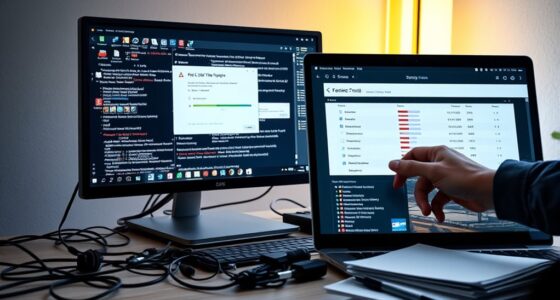
Monitoring your system’s temperature regularly can help you catch overheating early. Use software tools designed for this purpose, and set alerts if temperatures reach unsafe levels. If cooling isn’t enough, consider reducing background processes or lowering overclocking settings. Ultimately, maintaining a clean, well-cooled environment for your computer prolongs its lifespan and keeps it running smoothly. Addressing dust buildup, replacing faulty thermal paste, and optimizing your cooling setup are straightforward yet effective steps you can take today to prevent overheating and ensure your computer operates at its best.
computer dust cleaner with compressed air
As an affiliate, we earn on qualifying purchases.
As an affiliate, we earn on qualifying purchases.
Frequently Asked Questions
Can Overheating Damage My Computer’s Hardware Permanently?
Yes, overheating can cause permanent damage to your computer’s hardware. Excess heat can degrade components like your CPU and GPU, especially if thermal paste isn’t applied properly or has dried out. To prevent this, you should optimize airflow inside your case and clean dust regularly. Overheating repeatedly can lead to irreversible damage, so maintaining proper cooling and ensuring good airflow is essential for long-term hardware health.
How Effective Are Cooling Pads for Laptops?
Laptop cooling pads are quite effective at improving cooling, especially if your device tends to overheat during intensive use. They enhance airflow and help dissipate heat more efficiently, which can lower your laptop’s temperature and prevent thermal throttling. The pad effectiveness varies depending on the design and quality, but generally, they provide a noticeable difference in maintaining ideal operating temperatures, extending your laptop’s lifespan and improving performance.
Is It Safe to Open My Computer to Clean the Fans?
Yes, it’s safe to open your computer to clean the fans, but you should do it carefully. Make sure to power down and unplug your device first. When you access the internal components, gently remove dust and debris to improve airflow and prevent overheating. Use compressed air for dust removal, and avoid touching sensitive parts. If you’re unsure, consult your laptop’s manual or a professional to avoid damaging internal components.
Do Overclocked CPUS Cause More Overheating Issues?
Overclocked CPUs do cause more overheating issues because they increase CPU temperature considerably, pushing your processor beyond its normal limits. This practice involves overclocking risks, such as instability and hardware damage, especially if you don’t manage cooling properly. To prevent overheating, monitor your CPU temperature regularly and guarantee your cooling system is effective. If temperatures get too high, consider lowering the overclock or improving your cooling setup to protect your hardware.
Are There Software Tools to Monitor My Computer’s Temperature?
Yes, you can use software tools for hardware monitoring, which track your computer’s temperature thresholds in real-time. These tools help you identify overheating issues early, even if you’re worried about complex setups. Popular options like HWMonitor, Core Temp, and Speccy provide detailed insights into your CPU, GPU, and other component temperatures. Regularly checking these guarantees your system stays within safe limits and prevents overheating problems.
As an affiliate, we earn on qualifying purchases.
Conclusion
Just like a car engine overheating on a summer day, your computer needs proper cooling to run smoothly. I once ignored my laptop’s rising temperature, only to find it freezing during an important project. Regular cleaning, proper ventilation, and monitoring software act like a radiator and coolant, keeping things cool. Remember, neglecting these steps can cause your device to overheat and break down—so give your computer the same care you’d give a trusted vehicle.
PC case fans for improved airflow
As an affiliate, we earn on qualifying purchases.
As an affiliate, we earn on qualifying purchases.
As an affiliate, we earn on qualifying purchases.
Fall Picks
fall essentials
As an affiliate, we earn on qualifying purchases.