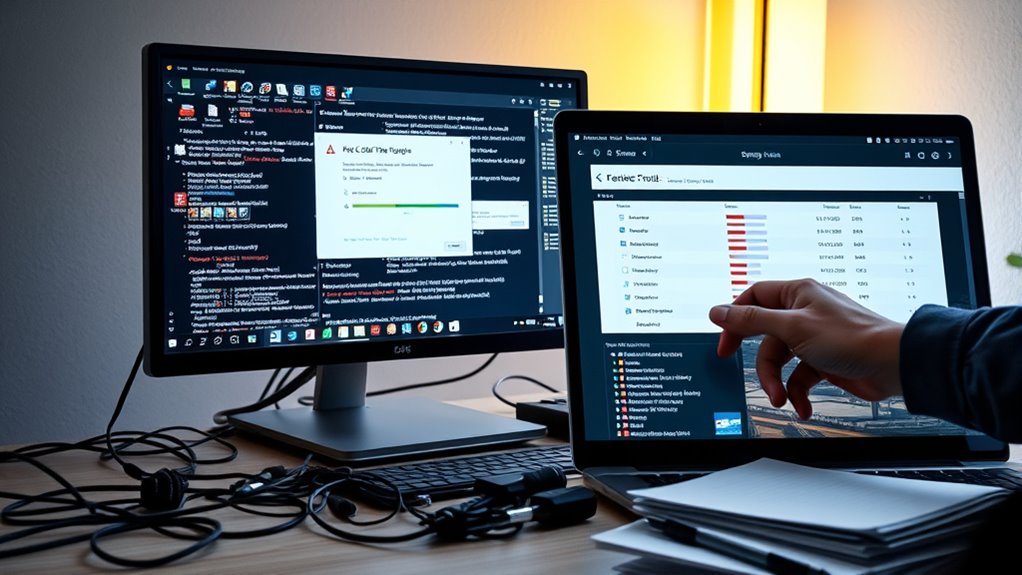

One common mistake that slows down your PC is ignoring background processes and unnecessary startup programs, which drain resources and extend boot times. Over time, leftover updates and installs pile up, causing sluggishness. You should regularly manage active processes, terminate unneeded ones, and disable unnecessary startup items. Also, avoid neglecting system maintenance. Fixing these issues can boost performance considerably, and if you keep going, you’ll discover even more ways to keep your PC running smoothly.
Listen free for 30 days with Audible
Thousands of audiobooks and originals — cancel anytime.
As an affiliate, we earn on qualifying purchases.
Key Takeaways
- Running unnecessary background processes consumes resources and slows system response. Regularly identify and terminate unneeded processes.
- Allowing multiple programs to auto-start at boot increases startup time and drains resources; manage startup items proactively.
- Failing to clean up leftover processes from software installs and updates leads to resource clutter and sluggish performance.
- Ignoring startup program management causes unnecessary background activity, impacting overall system speed.
- Neglecting routine process and startup management results in accumulated bloat, reducing your PC’s responsiveness over time.
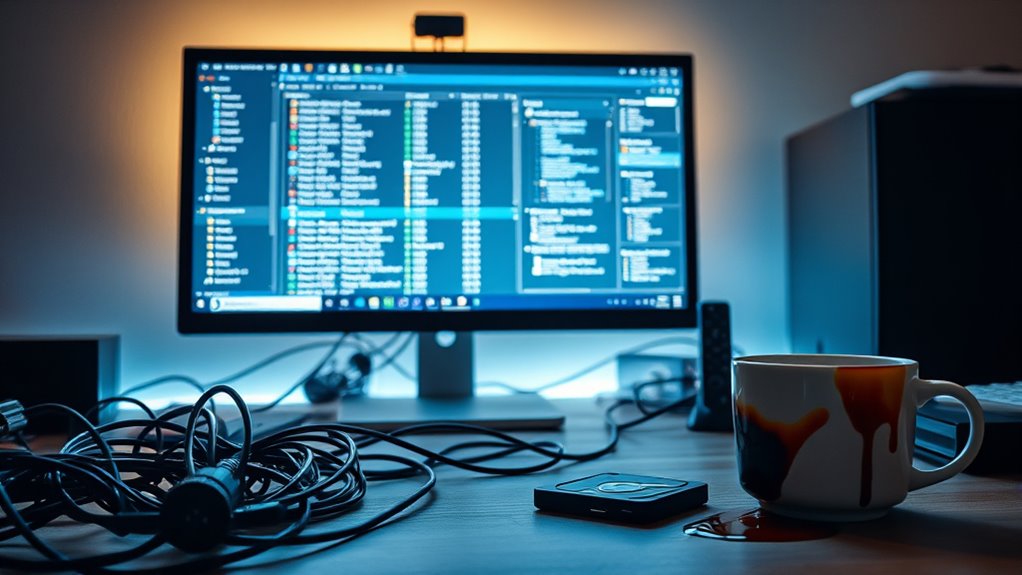
Over time, common mistakes can considerably slow down your PC’s performance without you even realizing it. One of the biggest culprits is how many background processes are running at once. These processes are programs or services that work behind the scenes, often without your knowledge, and they consume system resources like CPU, memory, and disk space. When too many are active, your PC struggles to allocate enough resources to your essential tasks, leading to sluggish performance. Many of these background processes are necessary, but many aren’t. Over time, installs and updates pile up, and unnecessary ones continue to run, wasting valuable resources. It’s easy to overlook these processes because they don’t appear on your desktop or taskbar, but they’re quietly draining your system’s speed. Regularly managing and terminating unnecessary background processes can improve your system’s responsiveness and help maintain optimal performance.
Another common mistake is neglecting unnecessary startup programs. When you turn on your computer, a variety of programs might automatically launch without your explicit permission. Some are essential, but many are simply clutter that you don’t need immediately. These startup programs slow down your boot time and continue to consume resources as long as your system is on. Over time, your PC can become bogged down with these unnecessary processes, making every startup longer and your overall system sluggish. The more programs that launch at startup, the harder your system has to work right from the get-go. Managing startup items is a simple yet effective way to speed up your PC’s initial boot and improve overall performance.
As an affiliate, we earn on qualifying purchases.
Frequently Asked Questions
How Often Should I Perform a Full System Cleanup?
You should perform a full system cleanup, including disk cleanup and deleting temporary files, every one to three months. Regularly clearing out unnecessary files helps keep your PC running smoothly. If you notice your system slowing down or taking longer to start, it’s time for a cleanup. Don’t wait too long; frequent maintenance prevents clutter buildup and maintains peak performance. Set a reminder to keep your system fresh and speedy.
Can Outdated Drivers Affect My Pc’s Speed?
Outdated drivers can slow down your PC just like old shoes hinder your steps. When driver updates lag behind, hardware compatibility issues arise, causing performance drops. Keeping your drivers current guarantees your hardware runs smoothly, boosting speed and stability. Regularly check for driver updates, especially for graphics and chipset drivers, to prevent slowdowns. Up-to-date drivers optimize hardware performance, helping your PC operate at its best without unnecessary lag or crashes.
What’s the Best Way to Identify Resource-Heavy Programs?
You can identify resource-heavy programs by using your task manager or software monitoring tools. Open the task manager (Ctrl + Shift + Esc) to see background processes and their CPU, memory, and disk usage. Look for programs that consume excessive resources and consider closing or optimizing them. Regularly monitoring your system helps you spot and manage resource-heavy apps, keeping your PC running smoothly and preventing slowdowns caused by unnecessary background processes.
Is It Safe to Disable Startup Programs?
Disabling startup programs is generally safe if you know what you’re doing. Think of program management like pruning a tree—removing unnecessary branches helps it grow stronger. When you disable unneeded startup items, your PC boots faster and runs smoother. Just make certain you leave essential programs, like antivirus software, active for startup safety. Review each item carefully before disabling to avoid accidentally affecting your system’s stability or security.
How Do I Know if My Hardware Is Causing Slowdowns?
You can find out if hardware causes slowdowns by running hardware diagnostics on your system. Use tools like built-in diagnostics or third-party software to check for issues with your CPU, RAM, or hard drive. Watch for system bottlenecks, like high CPU or disk usage, that point to hardware problems. If diagnostics reveal issues, upgrading or replacing components can improve performance and eliminate slowdowns.
As an affiliate, we earn on qualifying purchases.
Conclusion
By avoiding these common mistakes, you can markedly boost your PC’s speed and performance. Did you know that over 60% of slowdowns are caused by simple issues like cluttered storage or outdated software? Taking a few minutes to clean up your system and stay updated can make a huge difference. Don’t let small errors hold your PC back—apply these tips today and enjoy a faster, smoother experience every time you use your computer.
As an affiliate, we earn on qualifying purchases.
temporary file cleaner for Windows
As an affiliate, we earn on qualifying purchases.
As an affiliate, we earn on qualifying purchases.
Fall Picks
fall essentials
As an affiliate, we earn on qualifying purchases.