
Discover ten hidden Windows 11 features that can boost your productivity and personalize your experience. These include Snap Layouts for easy multitasking, Focus Assist to minimize distractions, customizable Widgets, and the new virtual desktops feature. You can also explore the ability to pin files directly to the Taskbar, automate tasks with Power Automate, and tweak privacy settings. Reveal more tips and tricks as you explore further to make your Windows 11 experience even smarter and more efficient.
Key Takeaways
- Utilize Snap Layouts for efficient multitasking without third-party tools.
- Enable Focus Assist to minimize distractions during deep work sessions.
- Customize the Taskbar position, size, and pinned items for quicker access.
- Explore hidden settings for personalized themes, accent colors, and desktop configurations.
- Access Widgets panel via Windows key + W for quick news, weather, and updates.
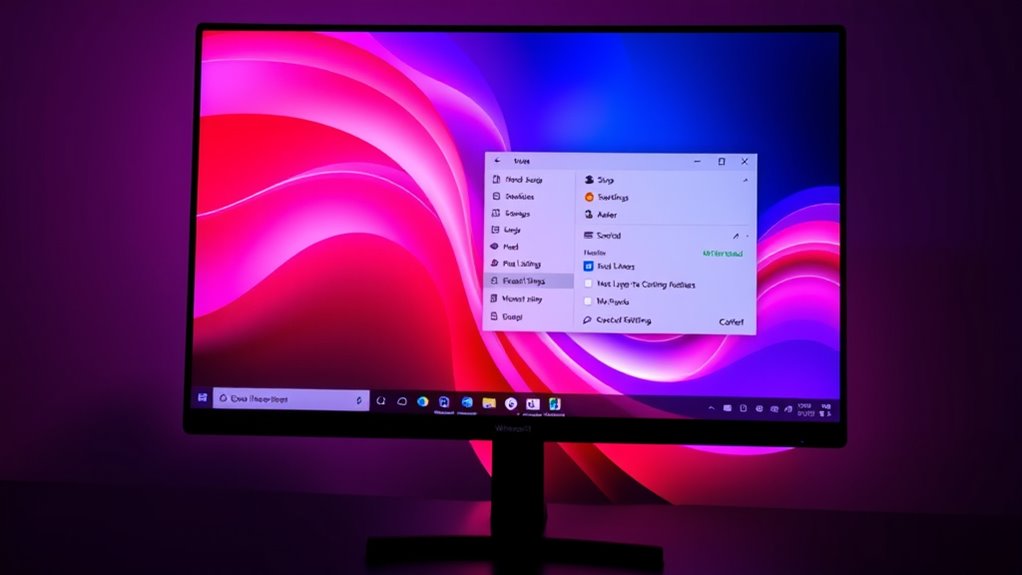
Ever wondered if Windows 11 has secret features waiting to be discovered? You might be surprised to learn there are plenty of hidden tools and shortcuts that can boost your productivity and personalize your experience. One of the easiest ways to unlock these features is through Windows 11 shortcuts. These quick key combinations can save you time by allowing you to perform tasks instantly. For example, pressing Windows key + W opens the Widgets panel, giving you quick access to news, weather, and other updates. Similarly, Windows key + A opens the Action Center, where you can manage notifications and quick settings. Mastering these shortcuts transforms your workflow, making navigation smoother and more efficient.
Discover hidden Windows 11 shortcuts to boost productivity and personalize your experience effortlessly.
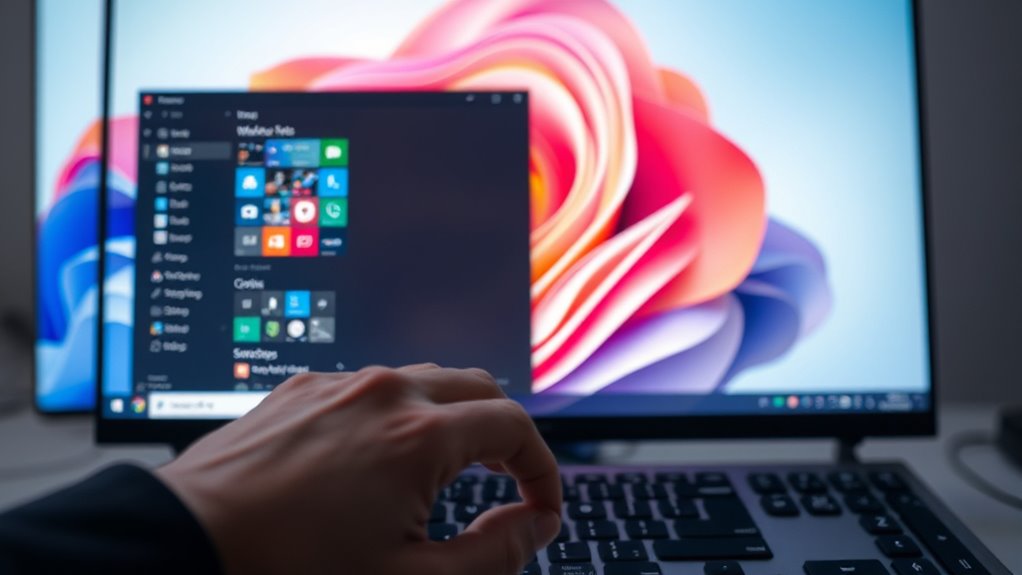
Beyond shortcuts, Windows 11 offers numerous customization tips that can help you tailor your desktop environment exactly how you want it. You can personalize the Start menu by pinning your favorite apps or removing clutter, making it easier to access what matters most. The new Snap Layouts feature is another hidden gem that simplifies multitasking; by hovering over the maximize button, you can choose how to arrange multiple windows on your screen. This feature helps you stay organized without needing third-party tools. Additionally, you can customize your desktop background, themes, and accent colors from the Settings menu, giving your workspace a fresh look that matches your style.
Another lesser-known customization tip involves the Taskbar. You can move it to different sides of the screen or resize it to better fit your workflow. Pinning files or folders directly to the Taskbar provides quick access without cluttering your desktop. Windows 11 also introduces a new focus assist feature that minimizes distractions—perfect for deep work sessions. You can configure it to activate during specified hours or when you’re using specific apps, ensuring you stay productive without interruptions. Moreover, understanding the importance of innovative cloud solutions can help you leverage Windows 11’s integration with cloud services for enhanced productivity.
Exploring these hidden features and shortcuts isn’t just about convenience; it’s about making your Windows 11 experience more personal and efficient. Take the time to explore into the settings and experiment with different configurations. You’ll find that small tweaks can profoundly enhance usability and make your day-to-day tasks feel more seamless. Whether it’s mastering shortcuts, customizing your layout, or adjusting notifications, these tips help you get the most out of Windows 11, turning it into a tailored tool designed around your needs.
Frequently Asked Questions
How Do I Enable God Mode in Windows 11?
To enable God Mode in Windows 11, you just need to create a special folder for quick access to system customization options. Right-click on your desktop, select “New” > “Folder,” then rename it to “GodMode.{ED7BA470-8E52-435E- Copypasta-12345}.” This gives you a centralized control panel, perfect for troubleshooting tips and system tweaks. It’s a handy hidden feature that streamlines managing Windows settings and optimizing your experience.
Can I Customize the New Snap Layouts Feature?
Yes, you can customize Snap Layouts in Windows 11 to suit your window management style. Simply hover over the maximize button or press Win + Z to access Snap Layouts, then choose your preferred layout. You can also resize and reposition windows after snapping. Think of Snap Layouts as your personal toolkit, transforming chaos into order, and making your multitasking more efficient with these window management tips.
What’s the Best Way to Access Hidden System Settings?
To access hidden system settings, you should open the System Registry through the Registry Editor by typing “regedit” in the Start menu. This allows you to customize advanced troubleshooting options and fine-tune Windows 11 beyond standard settings. Be cautious, though—modifying the registry can cause issues if you’re not careful. Always back up your registry before making changes, ensuring you can revert if needed.
Are There Shortcuts for Multitasking in Windows 11?
Imagine you’re juggling multiple projects, and you need to switch quickly between tasks. You can use keyboard shortcuts like Windows + Tab to open Task View, then create or switch virtual desktops for each task. This makes multitasking seamless. With these shortcuts for multitasking in Windows 11, you organize your work efficiently and boost productivity, all without cluttering your screen.
How Can I Improve Battery Life Using Hidden Options?
You can improve battery life by exploring hidden options like battery optimization and advanced power management settings. Access Power & Battery in Settings, then enable battery saver mode when needed. Turn off background apps and adjust screen brightness through hidden menus. Use the Power Mode setting to prioritize efficiency. These tweaks help extend your device’s battery life, ensuring longer usage without sacrificing essential performance.
Conclusion
By exploring these hidden features in Windows 11, you reveal a world of efficiency and power that can transform your daily computing experience. Don’t miss out—these tricks are like secret weapons, turning an ordinary system into an extraordinary powerhouse. Mastering even a few can make your workflow smoother than silk and faster than lightning. Embrace these hidden gems and watch your productivity soar to levels you never thought possible—Windows 11 is truly a game-changer waiting to be discovered.