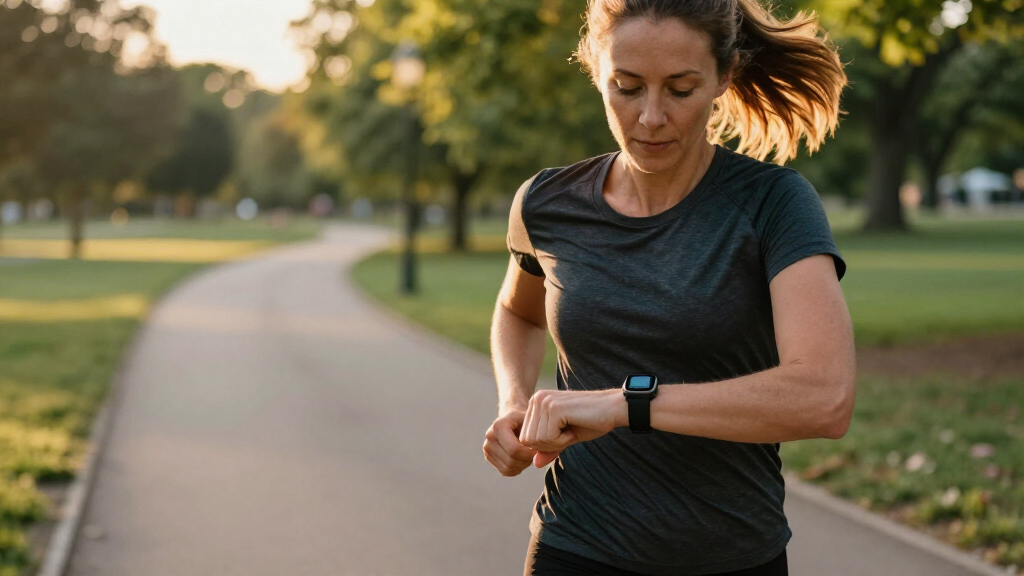
Set up your smart fitness tracker so it can record daily activity, workouts, and—if supported—sleep and health measurements. This guide is for first-time tracker owners and people replacing an older device; no specialist knowledge is needed. Plan for about 30-60 minutes to charge, pair, configure, and test the tracker. Some results, such as a sleep summary, will appear only after you wear it overnight.

Get workout gear delivered free — and shop member deals
- Fast, free delivery on millions of items
- Access to Prime Big Deal Days deals on October 6–7
- Prime Video, Amazon Music and more included

Fitness Tracker with 1.10-Inch AMOLED Screen, Heart Rate and Sleep Tracking
- ✔ Display: 1.10-inch AMOLED touchscreen
- ✔ Health tracking: 24/7 heart rate, sleep, breathing rate, and heart-rate variability
- ✔ Sports modes: 25

Smart Watch for Men and Women with 1.83" HD Touch Screen, Bluetooth Calling, IP68 Waterproof, and 140+ Sport Modes
- ✔ Display: 1.83-inch HD IPS; 240 × 284 resolution
- ✔ Battery: 350 mAh; 5–7 days use, up to 30 days standby
- ✔ Water resistance: IP68

ENGERWALL S5 Fitness Tracker with Heart Rate and Sleep Monitoring
- ✔ Model: S5-Black
- ✔ Water resistance: IP68; listing advises against prolonged immersion, hot baths, and saunas
- ✔ Sports modes: 16
Difficulty: Beginner | Time: 30-60 minutes, plus up to one night to check sleep tracking
What You’ll Need
Tools & Materials:
- Smart fitness tracker and its charging cable or dock
- Compatible smartphone or tablet
- Tracker manufacturer’s companion app
- Wi-Fi or mobile data and Bluetooth
Knowledge:
- How to install an app and allow phone permissions
- How to use Bluetooth settings on your phone
Check the tracker box or manufacturer’s support page for phone compatibility, charging instructions, and water-resistance limits. Create or sign in to the required account before setup if possible. If you are replacing a tracker, sync its latest data before removing it from your account. Health features and measurements vary by model and region; treat them as wellness information unless the manufacturer and your clinician say otherwise.
Fitness Tracker with 1.10-Inch AMOLED Screen, Heart Rate and Sleep Tracking
This tracker earns our top position by striking the clearest balance between fitness features and a compact form. Its 25 sports modes give active users more options than the ENGERWALL S5, which lists 16, while connected GPS can record routes when a phone is along. Continuous heart-rate monitoring, sleep tracking, breathing rate, and heart-rate variability broaden its day-to-day picture beyond steps and workouts. The 1.10-inch AMOLED screen keeps the device relatively small, a useful tradeoff for buyers who prefer a lighter wrist presence to the much larger 1.83-inch smartwatch screen.The phone connection is also the main constraint: GPS route recording is not phone-free, so runners who leave their phone behind should look elsewhere. The supplied information lists an app called Keep Heath and does not detail its data presentation or integration options, so buyers should not assume a particular level of analysis. The listed health information is for reference, not a substitute for medical advice. Compared with the S5, this model offers more sports modes and a more detailed set of stated health metrics; compared with the smartwatch, it gives up Bluetooth calling and screen space. That makes it our strongest all-around choice for buyers who put fitness tracking ahead of wrist-based calling.
Pros:
- Lists 25 sports modes, more than the ENGERWALL S5’s 16
- Tracks heart rate, sleep, breathing rate, and heart-rate variability
- Connected GPS can record workout routes with a paired phone
- Compact 1.10-inch AMOLED touchscreen and stated battery life up to 7 days
Cons:
- GPS route recording requires a connected phone
- Health data is for reference and not a medical assessment
- The supplied details do not establish tracking accuracy or app integration options
Best for: Buyers who want a compact tracker with multiple health metrics, 25 sports modes, and phone-connected route recording.
Not ideal for: People who want built-in GPS, phone-free workouts, or Bluetooth calls from the wrist.
Bottom line: Choose this compact AMOLED tracker for the lineup’s strongest mix of workout variety and everyday health tracking, provided your phone can come along for GPS.
“Choose this compact AMOLED tracker for the lineup’s strongest mix of workout variety and everyday health tracking, provided your phone can come along for GPS.”
Smart Watch for Men and Women with 1.83" HD Touch Screen, Bluetooth Calling, IP68 Waterproof, and 140+ Sport Modes
For buyers who want fitness functions alongside a more watch-like interface, this is the most communication-focused option in the group. Its 1.83-inch HD display is substantially larger than the AMOLED pick’s 1.10-inch screen, and Bluetooth calling lets users handle calls from the wrist when the phone is nearby. It also claims more than 140 sport modes, far more than either tracker in this comparison. That breadth may appeal to people who like choosing a named activity, though the supplied details do not explain how those modes differ in tracking or reporting.Its larger screen and call feature come with compromises. The product information says GPS depends on the smartphone, and users cannot reply to messages directly from the watch. Step counting reportedly does not register until more than 20 steps, which may frustrate someone who checks short walks or indoor movement. Compared with the compact AMOLED tracker, this model prioritizes calls and screen size over a compact fit and stated health metrics such as breathing rate and heart-rate variability. It makes the most sense for a buyer who wants a broad set of smartwatch conveniences and workout modes, rather than the most focused fitness-first package.
Pros:
- Large 1.83-inch HD touchscreen
- Bluetooth calling and music control
- Lists more than 140 sport modes
- Compatible with Android and iOS, with stated use of 5–7 days per charge
Cons:
- GPS functionality relies on a connected smartphone
- Cannot reply to messages directly from the watch
- Step counting reportedly begins only after more than 20 steps
Best for: People who want a large, easy-to-see watch display, Bluetooth calling, and a wide selection of listed sport modes.
Not ideal for: Phone-free runners, people who want to reply to messages from the wrist, or anyone who values highly responsive step counting.
Bottom line: Pick this smartwatch when calls and a large display matter as much as activity tracking, and accept its phone-dependent GPS and step-counting limitation.
“Pick this smartwatch when calls and a large display matter as much as activity tracking, and accept its phone-dependent GPS and step-counting limitation.”
ENGERWALL S5 Fitness Tracker with Heart Rate and Sleep Monitoring
The S5 is the straightforward pick for someone who wants core daily tracking in a slim band. It records steps, distance, calories, and workouts across 16 sport modes, and it adds heart-rate and sleep monitoring with other listed measurements including blood oxygen, blood pressure, and body temperature. Call and message notifications, alarms, and activity reminders cover the basics without the larger screen or calling emphasis of the smartwatch. Its built-in USB connector also means charging does not require carrying a separate cable.That simplicity makes the S5 easier to place: it suits routine wear better than a buyer chasing extensive workout categories or a rich display. The compact AMOLED tracker offers more sports modes and names additional health metrics, while the smartwatch provides Bluetooth calling and a larger touchscreen. The S5 counters with a slim design and familiar essentials, but its water guidance is more cautious than the broad IP68 label might suggest: the listing advises against prolonged immersion, hot baths, and saunas. Blood pressure measurement must be enabled in the app, and GPS route tracking uses app positioning. Buyers should treat its health readings as general wellness information rather than clinical measurements.
Pros:
- Slim tracker format for everyday wear
- Records steps, distance, calories, and 16 sports modes
- Includes heart-rate and sleep monitoring plus additional listed measurements
- Built-in USB connector and stated battery life of 5–7 days
Cons:
- GPS route tracking requires app positioning
- Not recommended for prolonged immersion, hot baths, or saunas
- Blood pressure measurement must be enabled through the app
Best for: Someone seeking a slim band for everyday steps, sleep, basic workouts, and phone notifications.
Not ideal for: Users who need extensive sport-mode choice, phone-free GPS, Bluetooth calling, or water use beyond the product’s stated cautions.
Bottom line: Choose the S5 for a slimmer, basic daily tracker, while recognizing that it offers fewer sport modes than the other two picks and requires a phone for routes.
“Choose the S5 for a slimmer, basic daily tracker, while recognizing that it offers fewer sport modes than the other two picks and requires a phone for routes.”
As an Amazon Associate we earn from qualifying purchases.
Before You Start
Charge the tracker before pairing. Some devices need a minimum charge to complete setup or install an update. Keep the tracker and phone close together, turn on Bluetooth, and connect the phone to the internet. If you have an old tracker from the same brand, sync it first and check whether the app offers a transfer option. Avoid factory-resetting an old device until you have confirmed that its unsynced data is no longer needed.
Choose a comfortable place to wear the tracker, usually on the wrist specified in the manual. A tracker can collect personal health and location information, so review the app’s data and privacy settings before enabling optional sharing or location access.
Step-by-Step Instructions
Step 1: Charge the tracker
Connect the tracker to its supplied cable, charging puck, or dock, then connect the charger to a suitable power source. Align charging contacts or magnets as described in the manual. Leave the device connected until its screen or indicator shows that setup-level charge is available; a full charge is preferable if you have time.
Tip:Do not force a magnetic charger into place. If it does not attach, rotate it or check the alignment marks. Remove any protective film covering the charging contacts.
Check: The tracker displays a charging symbol, percentage, or indicator light, and it stays connected to the charger.
Step 2: Install the companion app
On your phone, open the official app store, search for the tracker’s manufacturer, and install its companion app. Check the publisher name to avoid look-alike apps. Open the app, sign in or create an account, and follow its prompts to select your tracker model.
Tip:Use the same account you plan to keep using. Your activity history and settings may be linked to that account rather than stored only on the phone.
Check: The app opens to an account or device setup screen and identifies the correct tracker family or model.
Step 3: Pair the tracker with your phone
Keep the tracker beside your phone. Start pairing from the companion app and follow its instructions. When a pairing code appears on both devices, confirm that the codes match before accepting. Grant Bluetooth permission when requested. Complete any requested firmware update while the tracker and phone remain close and connected to power if the app recommends it.
Tip:Pair from inside the companion app unless the manual specifically directs you to the phone’s Bluetooth menu. Pairing from system settings first can leave the app unable to finish setup.
Check: The app lists the tracker as connected and shows its battery level or device status. If an update runs, the app reports completion rather than continuing to display a progress screen.
Step 4: Enter your profile details
In the app, enter the requested information, such as birth date, height, weight, and the wrist where you will wear the tracker. Choose the correct units. Add only details you are comfortable storing in the account; some profile fields affect estimates such as calories, distance, or heart-rate zones.
Tip:Use accurate values and update them if they change. Incorrect height, weight, or wrist selection can make estimates less useful.
Check: Your profile shows the intended units and wrist setting, with no obvious typing errors.
Step 5: Set the fit and orientation
Put the tracker on the wrist recommended in its manual, usually just above the wrist bone. Fasten it snugly enough to prevent it sliding during ordinary movement, while leaving room for comfortable circulation. If the device has a left- or right-wrist setting, match it to how you wear the tracker.
Tip:For workouts that use optical heart-rate sensing, the manual may recommend a slightly tighter fit and a position farther above the wrist bone. Loosen it again afterward. Stop wearing it if it causes pain, numbness, or persistent skin irritation.
Check: The tracker sits flat against your skin, does not spin freely, and feels comfortable when you bend your wrist.
Step 6: Choose activity and health settings
Open the app’s device or health settings. Select activity goals that fit your current routine, such as daily steps or active minutes. Turn on only the measurements you want, such as heart-rate tracking, sleep tracking, or movement reminders. Review notification choices and disable alerts you do not want. Check whether location access is needed for features such as route maps, and allow it only if you plan to use those features.
Tip:Start with a realistic goal. A target you can reach consistently is more useful for building a routine than an arbitrary high number.
Check: The app shows your chosen goals and enabled features, and the tracker displays the expected time or notification settings.
Step 7: Test a short walk or workout
Start a short walk or workout from the tracker or app, following the device’s instructions. Move at a normal pace for several minutes, then stop and save the session. Open the activity summary in the app and check the duration, route if enabled, and available measurements. If automatic workout detection is supported, confirm that its setting is on, but use manual start when you need a clearly marked session.
Tip:GPS can take longer to connect outdoors, especially near tall buildings or under heavy cover. Wait for the device’s location indicator before starting if route accuracy matters.
Check: The saved session appears in the app with a sensible duration and activity type. Measurements may take a few minutes to sync.
Step 8: Check syncing and daily summaries
Return to the app’s dashboard and trigger a sync if it does not update automatically. Compare the tracker’s current step count or battery level with the app. Review the daily summary to learn where steps, active minutes, heart rate, or other enabled metrics appear. Check the app later in the day to confirm new activity is being added.
Tip:Small differences between phone and tracker step counts can happen because each device uses its own sensors and counting rules. Use one device consistently when comparing trends.
Check: The app displays a recent sync time or updated device status, and at least one new reading or activity appears.
Step 9: Wear it overnight if you want sleep data
Before bed, check the manual for sleep-tracking requirements and confirm that the feature is enabled. Wear the tracker as directed, with a comfortable fit, and keep enough battery for the night. In the morning, sync the device and open the sleep section of the app. Some models need time to process the night’s data before showing a result.
Tip:Sleep estimates can be missing if the battery runs out, the fit is too loose, or the tracker cannot identify a sleep period. A single night is not a medical assessment.
Check: The app shows a sleep period or explains that data is still processing. Check the next night as well before changing settings based on one unusual result.
Common Mistakes to Avoid
- Pairing the tracker in the phone’s Bluetooth menu before opening the companion app. — Begin pairing inside the official app and follow its sequence. If the tracker is already listed in Bluetooth settings but the app cannot find it, remove that pairing and restart setup as the manufacturer directs.
- Wearing the tracker too loosely or in the wrong position. — Follow the manual’s placement instructions and keep the sensor against the skin. Adjust the strap for workouts, then return it to a comfortable everyday fit.
- Expecting every estimate to match another device exactly. — Use the same tracker for trends over time. Steps, calories, sleep stages, and heart-rate readings can differ across devices and are estimates.
- Turning on every alert and measurement during setup. — Enable the features you plan to use first. Add optional alerts or data sharing later if they help your routine.
Troubleshooting
Problem: The app cannot find the tracker.
Solution:
Charge the tracker, move it next to the phone, and confirm Bluetooth is on. Close and reopen the companion app, then try pairing again from within the app. If the tracker was paired to another phone, disconnect it there or follow the manufacturer’s unpairing instructions. Restart both devices if the app still cannot detect it.
Problem: The tracker shows as connected, but the app has no recent data.
Solution:
Open the app and start a manual sync if available. Confirm the phone has internet access and that Bluetooth permission is allowed. Keep the app open beside the tracker until syncing finishes. Check the device’s battery and account sign-in if the data remains stale.
Problem: Heart-rate readings are missing or jump unexpectedly.
Solution:
Reposition the tracker so the sensor rests flat against clean, dry skin. Tighten the band slightly during exercise without making it painful. Clean the sensor and check that continuous heart-rate tracking is enabled. Cold skin, vigorous wrist movement, tattoos, and a poor fit can affect optical readings.
Problem: A workout or sleep period does not appear.
Solution:
Check that the relevant feature is supported and enabled, then sync again. Review battery level, wear position, and the app’s activity or sleep settings. For workouts, start and save a manual session while testing. For sleep, wear the tracker for another night; some devices need a minimum duration before recording a session.
What Success Looks Like
Your tracker is paired to the correct account, has a usable charge, and fits comfortably in the position specified by its manual. The app shows the device as connected, your chosen goals and features, and a recent sync. A short test activity appears with a plausible duration. If you enabled sleep tracking, a sleep summary appears after a qualifying night and sync. The measurements may be estimates; use the tracker to follow patterns rather than diagnose a health condition.
Next Steps
Wear the tracker consistently for several days before changing goals. Review your weekly trends in the app and adjust the target if it is too easy or too difficult to maintain. Clean and dry the tracker as its manual directs, check the band for wear, and charge it before the battery becomes critically low. Review app permissions and data-sharing choices when your preferences change. Contact the manufacturer for pairing or hardware faults that continue after the troubleshooting steps. Ask a qualified clinician about health symptoms or medical decisions rather than relying on tracker estimates.
Frequently Asked Questions
Do I need to keep my phone with me for the tracker to count steps?
Most wrist trackers count steps on the device, so the phone can usually stay elsewhere. The tracker may need to reconnect later to sync data. GPS routes, phone notifications, and some connected features may require the phone nearby or location services enabled.
How snug should a fitness tracker be?
For everyday wear, it should stay in place without pinching or restricting circulation. The sensor should touch your skin. Follow the manual for exercise-specific fit guidance, and remove the tracker if it causes persistent irritation or discomfort.
Can I wear my tracker in the shower or pool?
Check the exact model’s water-resistance rating and care instructions. Water resistance does not mean every device is safe for every depth, temperature, or activity. Avoid hot water or soaps unless the manufacturer says the tracker can handle them, and dry it as directed.
Why do tracker calorie and sleep estimates differ from other devices?
Devices use different sensors and algorithms, and many measurements are estimates. Wear position, movement, profile details, and sensor contact can affect results. Compare your own readings over time on one device instead of expecting exact agreement between products.
Will my tracker diagnose a health problem?
A consumer fitness tracker is generally designed to show wellness information, not provide a diagnosis. Feature availability and intended use differ by model. Follow the device’s instructions and consult a clinician about symptoms or medical decisions.
Fall Picks
fall essentials
As an affiliate, we earn on qualifying purchases.