
To keep your PC running smoothly, regularly remove dust using compressed air, focusing on fans, heatsinks, and vents to prevent overheating. Keep your system secure by updating drivers, running antivirus scans, and uninstalling unused programs. Clean up unnecessary files and manage startup items to boost speed. Combining proper physical cleaning with digital maintenance guarantees your PC lasts longer and performs better. Stick around to discover more essential tips for maintaining your computer’s peak performance.
Key Takeaways
- Regularly open and clean your PC interior with compressed air, holding fans steady to prevent damage.
- Perform software maintenance by removing unnecessary files, managing startup programs, and updating drivers.
- Keep your operating system and security software up-to-date to protect against vulnerabilities and improve stability.
- Monitor hardware temperatures and ensure proper airflow to prevent overheating and hardware degradation.
- Establish a routine maintenance schedule combining physical cleaning and digital upkeep for optimal PC performance.
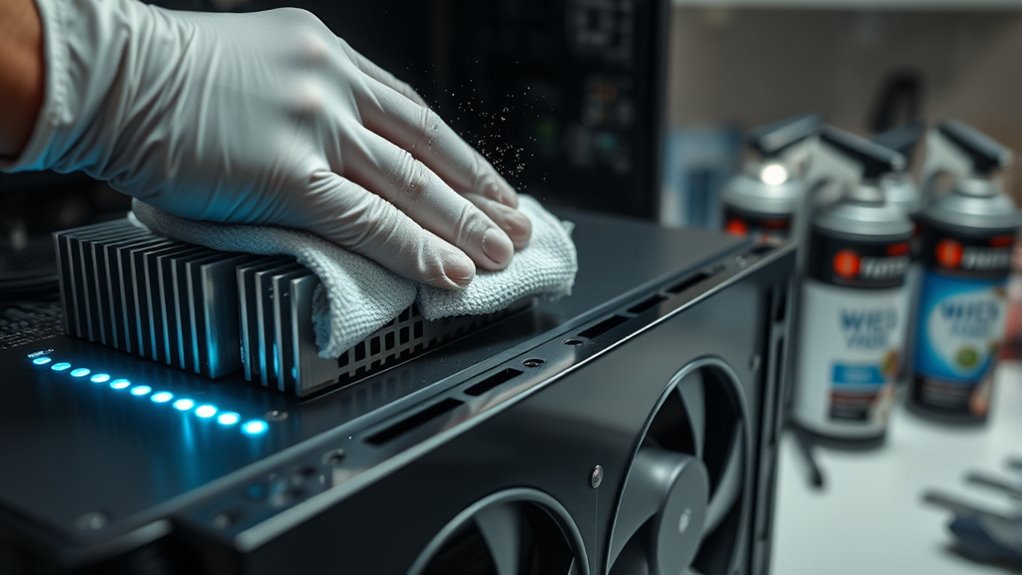
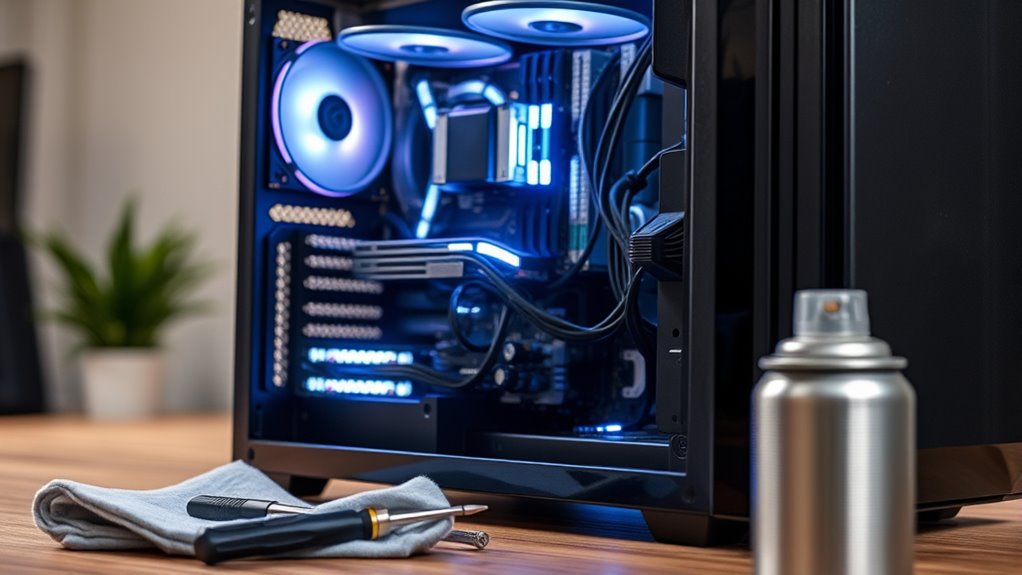
Regularly cleaning and maintaining your PC is essential to keep it running smoothly and prevent hardware issues. Over time, dust accumulates inside your computer, clogging fans, heatsinks, and vents. This buildup can cause your system to overheat, slowing down performance or even damaging components. To avoid this, dust removal should be a regular part of your maintenance routine. Carefully power down your PC, unplug it, and open the case. Use compressed air to blow out dust from fans, heatsinks, and other internal parts. Hold fans in place while cleaning to prevent damage from spinning blades. Be thorough but gentle, ensuring every vent and crevice is clear. This simple step can greatly improve airflow and cooling efficiency, which directly impacts your PC’s performance.
Alongside dust removal, software optimization plays a key role in maintaining your system’s health. Over time, your computer accumulates unnecessary files, background processes, and startup programs that slow things down. Regularly cleaning out junk files, clearing browser caches, and uninstalling unused applications can free up valuable storage space. Use built-in tools like Disk Cleanup or third-party utilities to automate this process. Additionally, managing startup programs ensures your PC boots faster and runs more efficiently. Disable any unnecessary apps that launch at startup, reducing the load on your system’s resources. Keeping your drivers up to date is also essential because outdated drivers can cause conflicts, crashes, or decreased performance. Check manufacturer websites or use device management tools to ensure all drivers are current. By optimizing your software environment, you help your PC operate at its best, minimizing lag and preventing potential software-related issues.
It’s also wise to run regular antivirus scans and keep your operating system updated. Updates often include security patches that protect your system from malware that can degrade performance or compromise your data. Setting a routine for these updates and scans ensures your system stays secure and runs smoothly. Regular physical cleaning, including dust removal, can also prevent long-term hardware degradation. Remember, good maintenance isn’t a one-time task; it’s an ongoing process that involves both physical cleaning and digital upkeep. By combining dust removal with software optimization, you extend the lifespan of your PC and keep it performing like new. Staying proactive with these practices means fewer crashes, faster speeds, and less frustration overall. Your PC is an investment, and regular maintenance is the best way to preserve its performance and reliability over time.
Frequently Asked Questions
How Often Should I Replace Thermal Paste on My CPU?
You should replace thermal paste on your CPU every 2 to 3 years, as its lifespan can diminish over time. Fresh thermal paste improves CPU temperature management by ensuring better heat transfer between the processor and heatsink. If you notice higher CPU temperatures or system instability, it’s a good idea to reapply thermal paste sooner. Regular replacement maintains ideal cooling performance and prevents overheating issues.
Can Cleaning My PC Improve Gaming Performance Significantly?
Cleaning your PC can substantially improve gaming performance by reducing dust buildup that blocks airflow. When you clear out dust from fans, vents, and heatsinks, you optimize airflow, helping your components stay cooler and run more efficiently. This prevents thermal throttling, which slows down performance. Regular cleaning is key—aim for every few months—to keep your system running smoothly and gaming at its best.
Is It Safe to Open My Laptop for Cleaning?
Opening your laptop is like opening a treasure chest—exciting but delicate. As long as you follow the right cleaning procedures and prioritize laptop safety, it’s generally safe. Disconnect power, ground yourself, and use gentle tools like a soft brush or compressed air. If you’re unsure, check your model’s manual or consult a professional. Proper care guarantees your laptop stays shiny and healthy without risking damage.
What Are the Signs My PC Needs a Deep Cleaning?
You’ll know your PC needs a deep cleaning if you notice dust buildup inside and around vents, which can hinder airflow. Overheating symptoms like frequent shutdowns, lagging performance, or loud fan noise also indicate it’s time for a thorough cleaning. Regularly inspecting for dust and monitoring your system’s temperature helps keep your PC running smoothly and prevents potential hardware damage.
How Do I Prevent Static Damage While Cleaning?
Imagine you’re cleaning your PC and want to avoid static damage. To do this, always use ESD prevention techniques like wearing an anti-static wrist strap or working on an anti-static mat. For added safety, make certain you disconnect the power and avoid carpeted surfaces, which generate static. Using an anti-static mat grounds you, preventing static buildup and protecting sensitive components from static discharge during cleaning.
Conclusion
Keeping your PC clean and well-maintained boosts its lifespan and performance. Did you know that dust buildup can decrease your computer’s efficiency by up to 20%? Regular cleaning not only prevents overheating but also saves you money on repairs and replacements. Take a few minutes every month to keep your system in top shape, and you’ll enjoy smoother operation and longer hardware life. Stay proactive, and your PC will thank you for it!