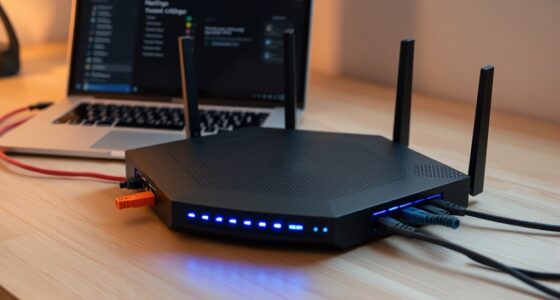
To boost your Wi-Fi signal without spending anything, start by repositioning your router to a central, elevated spot free from walls and electronics that can cause interference. Manage your connected devices by disconnecting unused ones and securing your network with a strong password. Update your router’s firmware and switch to less crowded channels to reduce interference. Reboot your router regularly to keep it running smoothly. Want more tips to improve your Wi-Fi? Keep exploring for practical solutions.
Key Takeaways
- Position your router centrally and elevate it to minimize physical obstructions.
- Limit connected devices and disconnect unused ones to reduce network congestion.
- Regularly reboot your router to clear glitches and improve performance.
- Change Wi-Fi channels to less congested ones using built-in router settings or analyzer tools.
- Keep firmware updated and secure your network with strong passwords and encryption.
Reposition Your Router for Better Coverage

To improve your Wi-Fi coverage, start by repositioning your router to a more central and open location. Proper router placement is essential for ideal signal distribution, so avoid placing it near walls, corners, or metal objects that can block signals. Elevate the router off the floor and keep it away from electronic devices that might cause interference. Pay attention to antenna positioning; if your router has adjustable antennas, angle them vertically or in different directions to maximize coverage. Experiment with different positions to find the spot that provides the strongest, most consistent signal across your space. Remember, the goal is to reduce obstacles and guarantee a clear path for your Wi-Fi signals to travel, giving you better coverage without spending extra money. Creating a calm and organized home can also help minimize clutter that might interfere with signal pathways and improve overall connectivity. Additionally, optimizing your router’s firmware can enhance performance and stability. Ensuring your network security settings are properly configured can prevent unauthorized access that might slow down your connection. Properly managing your device placement can also improve signal strength and reduce interference from other electronics.
Minimize Physical Obstacles and Interference

Physical obstacles and interference can considerably weaken your Wi-Fi signal, so it’s important to clear the path between your router and devices. Building materials like thick walls, metal furniture, and mirrors reflect or absorb Wi-Fi signals, reducing their strength. To improve coverage, move your router away from these obstacles whenever possible. Electronic interference from household devices such as microwaves, cordless phones, and baby monitors can also disrupt your signal. Keep your router away from these sources to minimize interference. Avoid placing your router behind furniture or inside cabinets, as these can block signals. Elevate your router to a higher spot, ensuring fewer barriers between it and your devices. Understanding Wi-Fi signal strength can help you identify additional ways to optimize your setup. Additionally, consider signal reflection from surfaces like mirrors or metal objects, which can further weaken your connection if not properly managed. Being aware of Building materials that absorb or reflect wireless signals can also guide better placement choices. You might also explore electromagnetic interference sources, which can contribute to signal degradation if not properly managed.
Keep Your Router’s Firmware Up to Date

To keep your Wi-Fi running smoothly, you should regularly check for firmware updates. Access your router’s settings to see if a new version is available and install it when needed. Enabling automatic updates guarantees your firmware stays current without extra effort. Additionally, ensuring your router’s wave and wind compatibility is essential for optimal performance. Regularly reviewing your network’s security settings can also help prevent unauthorized access and maintain a stable connection. Being aware of interference factors, such as other wireless devices or household electronics, can further help in maintaining a reliable and fast Wi-Fi connection. Incorporating wireless standards considerations can improve your network’s speed and coverage.
Check for Firmware Updates
Have you checked if your router’s firmware is up to date? Firmware updates are essential for maintaining your router’s performance and security. Manufacturers regularly release updates that fix bugs, improve stability, and patch vulnerabilities, which helps protect your network from threats. To check for updates, log into your router’s admin panel, usually by typing its IP address into your browser, then navigate to the firmware or software section. If an update is available, follow the instructions to install it promptly. Keeping your firmware current not only enhances your Wi-Fi signal but also strengthens your router security. Outdated firmware can slow down your network and expose you to potential security risks. Regularly checking for firmware updates is a simple, free way to optimize your Wi-Fi without extra cost. Additionally, vetted sources confirm that staying current with firmware improves overall network reliability and security. Remember, Firmware updates often include important security patches that help protect your entire network from emerging threats. Ensuring your router’s security protocols are up to date further safeguards your connected devices and personal data.
Access Router Settings
Accessing your router’s settings is the next step to make certain your firmware stays current. To do this, connect to your Wi-Fi network and open a web browser. Enter your router’s IP address, often something like 192.168.1.1, in the address bar. When prompted, enter your router password—use a strong, unique one to keep your network secure. Once logged in, navigate to the firmware update section to check for any available updates and install them. While in the settings, review your Wi-Fi encryption settings; ensure you’re using WPA2 or WPA3 for better security. Keeping your router’s firmware updated and securing your Wi-Fi encryption helps prevent vulnerabilities that could weaken your signal. Regularly accessing these settings is key to maintaining a strong, safe Wi-Fi connection.
Enable Automatic Updates
Wondering how to make sure your router always stays up-to-date without constantly checking manually? Enable automatic updates to keep your firmware current, ensuring better performance and security. Regular software updates fix bugs, improve stability, and enhance your network monitoring capabilities. To set this up:
- Log into your router’s admin panel.
- Find the firmware or software update section.
- Enable automatic updates or schedule regular checks.
- AI-driven solutions are increasingly used to optimize firmware management and detect vulnerabilities proactively.
Adjust Your Router’s Channel Settings

Changing your router’s channel to a less congested one can improve your Wi-Fi performance. You can also use the auto-select feature, which automatically finds the best channel for your environment. These simple adjustments can make a noticeable difference without costing you anything.
Change to Less Congested Channels
Since Wi-Fi signals often get crowded on popular channels, switching to a less congested one can considerably improve your connection. Proper channel selection is a key part of frequency management, helping reduce interference from nearby networks. To find the best channel:
- Use a Wi-Fi analyzer app to identify less crowded channels in your area.
- Access your router’s settings and manually select a channel with fewer users.
- Test different channels to see which provides the strongest signal and least interference.
Use Router’s Auto-Select Feature
Using your router’s auto-select feature can simplify the process of choosing the best Wi-Fi channel. This setting automatically scans for the least congested channel, optimizing your signal without manual adjustments. When enabled, the router’s auto select continuously monitors network traffic to pick the most suitable channel, reducing interference from nearby devices. This feature enhances device compatibility, ensuring all your gadgets connect smoothly without lag or drops. You won’t need to guess which channel is best or switch manually—your router handles it for you. To activate this, access your router’s settings, locate the channel selection option, and enable auto select. By doing so, you improve your Wi-Fi performance effortlessly, making your connection faster and more reliable.
Remove Unnecessary Devices From the Network

Unnecessary devices on your Wi-Fi network can substantially slow down your connection. To improve speed, focus on device management and maintaining good network hygiene. Start by disconnecting devices you no longer use or need. This practice helps prevent network congestion and frees up bandwidth for essential activities. Additionally, creating a Free Floating network layout can help optimize signal distribution and minimize interference from other electronic devices. Regularly monitoring your network can also help identify unusual activity, which may indicate security issues or unauthorized access. Implementing proper device prioritization can further enhance your network performance by ensuring critical devices receive sufficient bandwidth. Consider these tips: 1. Regularly review connected devices and remove unknown or outdated ones. 2. Limit the number of devices actively connected at once. 3. Use your router’s management tools to identify and disconnect low-priority devices.
Use Ethernet Cables for High-Bandwidth Activities

Using Ethernet cables for your high-bandwidth activities guarantees a more stable connection than Wi-Fi. With wired connections, you’ll experience faster data transfer speeds, reducing buffering and lag. This simple switch can considerably boost your online experience without extra spending. Additionally, thermal behavior insights can help you optimize your network setup for consistent performance.
Wired Connection Stability
If you want a reliable connection for high-bandwidth activities like streaming or gaming, Ethernet cables are your best option. They markedly improve network reliability and wired connection stability, ensuring smooth performance. To maximize these benefits:
- Use high-quality, shielded Ethernet cables to reduce interference.
- Keep cables untangled and avoid sharp bends that can damage the connection.
- Connect directly to your router or switch instead of relying on long or shared cables, which can weaken signals.
- Choosing the right Ethernet cable can also help, as certain types are designed for higher speeds and better durability, ensuring your connection remains stable over time. Ethernet cable choices
Faster Data Transfer
To achieve faster data transfer rates, connecting your device directly to the router with an Ethernet cable is one of the most effective methods. This minimizes interference and maximizes bandwidth, especially for high-bandwidth activities like streaming or gaming. To optimize performance, consider enabling data compression to reduce the amount of data transmitted, and implement network prioritization to allocate bandwidth to critical devices. Here’s a quick comparison:
| Feature | Benefit |
|---|---|
| Data Compression | Speeds up transfers by reducing data size |
| Network Prioritization | Ensures high-priority devices get bandwidth |
Using Ethernet cables for these activities ensures stable, high-speed connections, letting you enjoy faster data transfer without worrying about Wi-Fi interference or congestion.
Reboot Your Router Regularly

Rebooting your router regularly can markedly improve your Wi-Fi performance by clearing out temporary glitches and freeing up memory. This simple step helps maintain ideal speed and stability. When you reboot, it also refreshes your router’s security settings, ensuring Wi-Fi encryption stays current and effective against threats. Regular reboots prevent outdated configurations that could weaken router security.
Reboot your router regularly to boost performance, refresh security, and prevent outdated settings from weakening your network.
To maximize benefits, consider these tips:
- Schedule reboots weekly to keep your connection fresh.
- Update your router’s firmware during reboots for improved security.
- Check for firmware updates to enhance Wi-Fi encryption and protect your network.
Secure Your Wi-Fi With a Strong Password

How secure is your Wi-Fi network? A strong password is your first line of defense against unauthorized access. Focus on password complexity by combining uppercase and lowercase letters, numbers, and symbols to make it harder for intruders to crack. Avoid common words or easy-to-guess sequences. Additionally, guarantee your router uses robust encryption protocols like WPA3 or WPA2, which protect your data during transmission. Updating your password regularly adds an extra layer of security. A complex password combined with advanced encryption considerably reduces the risk of hacking and protects your personal information. Remember, a secure Wi-Fi network not only shields your devices but also boosts overall network performance by preventing unwanted users from hogging bandwidth.
Optimize Your Device Settings for Better Connectivity

Optimizing your device settings can considerably improve your Wi-Fi connection. First, ensure your device’s network adapter is compatible with your router’s standards (like 802.11ac or ax) for ideal device compatibility. Next, check your device’s signal strength indicators; if the signal is weak, try adjusting network settings or updating drivers to enhance performance. Here are three key tips:
- Enable Wi-Fi band steering if available, to connect to the best frequency (2.4 GHz or 5 GHz).
- Turn off background apps that consume bandwidth, freeing up resources for better connectivity.
- Set your device’s DNS settings to a faster, more reliable server to improve speed and stability.
These steps help you get the most from your current setup without extra costs.
Identify and Eliminate Signal Interference Sources

Interference from other electronic devices and physical obstructions can considerably weaken your Wi-Fi signal. Electromagnetic interference from devices like cordless phones, microwave ovens, or baby monitors can disrupt your network’s performance. Additionally, neighboring network conflicts occur when multiple Wi-Fi networks operate on overlapping channels, causing signal clashes. To identify these issues, use your device’s network analyzer tools or apps to scan for nearby networks and their channels. If you find overlapping channels, switch your router to a less congested one—often 1, 6, or 11 in the 2.4 GHz band. Move your router away from potential sources of interference and physical barriers like thick walls or metal objects. Eliminating these sources helps clear the way for a stronger, more reliable Wi-Fi signal.
Frequently Asked Questions
How Can I Improve Wi-Fi Signal in Large or Multi-Story Homes?
To improve your Wi-Fi signal in large or multi-story homes, you should set up mesh networking or signal repeaters. Mesh systems create a seamless network across multiple floors, ensuring consistent coverage, while signal repeaters extend your existing Wi-Fi range to dead zones. Place repeaters strategically, like near staircases or open spaces, to maximize coverage without extra cost. These solutions help you enjoy better Wi-Fi throughout your entire home.
What Are the Signs My Wi-Fi Signal Is Weak or Unstable?
Ever notice your videos buffering or your device disconnecting unexpectedly? These are signs your Wi-Fi signal is weak or unstable. Check your device’s signal strength indicators—if they show low bars or fluctuating connectivity, it’s time to investigate. Frequent device connectivity issues, slow internet speeds, or dropped connections often point to a weak Wi-Fi signal. Addressing these signs can help you troubleshoot and improve your home network without extra costs.
Can Changing My Wi-Fi Frequency Band Enhance Signal Strength?
Switching your Wi-Fi frequency band can improve signal strength, especially if your devices support the 5 GHz band. Make certain your router firmware is up to date for peak performance and compatibility. Check device compatibility beforehand, as some older gadgets only work on 2.4 GHz. By selecting the right band and keeping your firmware current, you can experience a more stable, faster connection without spending extra money.
How Do I Troubleshoot Wi-Fi Dead Zones Effectively?
Ever wonder why some areas lose Wi-Fi connection? To troubleshoot dead zones, start by checking for network interference from other devices or appliances. Move your router to a central, open spot to improve coverage. Verify device compatibility with your router’s frequency band. Restart your router and update its firmware. If issues persist, consider reducing interference sources or adjusting your router’s placement to optimize signal strength in dead zones.
Are There Specific Router Placement Tips for Optimal Coverage?
Place your router high on a shelf or wall mount to improve coverage. Keep it away from large obstructions like thick walls, metal objects, or appliances that can block signals. Avoid placing it near mirrors or electronic devices that emit interference. Position it centrally in your home to maximize signal reach. These simple steps enhance your Wi-Fi signal, reducing dead zones without any extra cost.
Conclusion
By following these simple tips, you can boost your Wi-Fi signal without opening your wallet—no need to be a wizard like Merlin to improve your connection. Just like tuning a vintage radio, a few strategic adjustments can make a world of difference. So, take charge of your network, eliminate interference, and enjoy faster, more reliable internet. With patience and a little know-how, your Wi-Fi will be as strong as a knight’s armor—no magic required.