
To speed up your Windows 11 PC without installing programs, start by managing background processes. Open Task Manager with Ctrl + Shift + Esc and end non-essential apps to free resources. Next, control startup programs by disabling unnecessary apps in Task Manager’s Startup tab or in Settings under Apps > Startup. Regularly reviewing these settings helps keep your system responsive and efficient. Keep exploring these tips to gain access to even more ways to optimize your PC’s performance.
Key Takeaways
- End unnecessary background processes via Task Manager to free system resources.
- Disable non-essential startup programs through Task Manager or Settings to speed up boot time.
- Regularly review and close unused applications to prevent resource drain.
- Keep system updates current to ensure optimal performance and security.
- Restart your PC periodically to clear temporary files and refresh system operations.
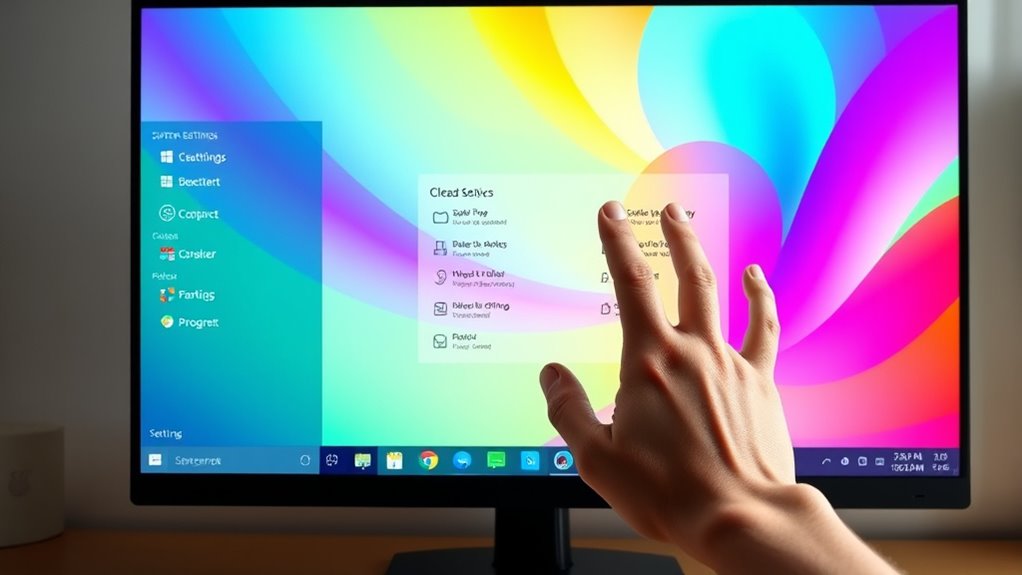
If your Windows 11 PC has started running sluggishly, don’t worry—there are several straightforward ways to boost its performance. One of the most effective methods is managing background processes and optimizing your startup. Background processes are programs or services running behind the scenes, often consuming system resources even if you’re not actively using them. Over time, these can pile up and slow down your PC significantly. To address this, press Ctrl + Shift + Esc to open Task Manager. Switch to the Processes tab, and you’ll see a list of all active applications and background processes. Identify any that you don’t need running all the time, right-click on them, and select End Task. Be cautious not to close essential system processes, as that could cause instability. Regularly reviewing and terminating unnecessary background processes helps free up memory and CPU resources, resulting in a quicker, more responsive system. Managing background processes is a key step in maintaining optimal system performance. Startup optimization is another vital step. Many programs automatically launch when Windows starts, which can greatly delay your PC’s boot time and drain resources early on. To improve this, open Task Manager again and go to the Startup tab. Here, you’ll find a list of applications set to run at startup, along with their impact on boot time. Disable any programs that aren’t essential. For instance, if you notice a cloud storage app or a game launcher that you rarely use, right-click on it and choose Disable. This prevents them from automatically launching at startup, speeding up your boot process and reducing background activity. Additionally, you can tweak your system’s startup settings through the Settings app by navigating to Apps > Startup, where you can toggle apps on or off. Doing this guarantees only necessary programs run when you start your computer, leading to faster startups and less resource drain. Incorporating these steps doesn’t require downloading any third-party tools or complex software. Regularly managing background processes and optimizing startup programs can keep your Windows 11 running smoothly and efficiently. These simple adjustments help prevent unnecessary strain on your system’s CPU and memory, making everyday tasks feel snappier. Keeping an eye on what runs in the background and controlling startup applications is a proactive way to improve performance without any added hassle. Over time, these small changes can make a noticeable difference, giving your PC a fresh boost in speed and responsiveness.
Frequently Asked Questions
Can Adjusting Visual Effects Improve Performance Significantly?
Adjusting visual effects can substantially improve your Windows 11 PC’s performance. By disabling or reducing effects like animations, shadows, and transparency, you lessen the load on your system resources. This streamlining allows your computer to run more smoothly and quickly. You’ll notice faster response times and less lag, especially on older or less powerful hardware. So, tweaking visual effects is an effective way to boost your PC’s overall performance impact without installing new programs.
Does Changing Power Settings Affect Windows 11 Speed?
Yes, changing power settings can affect your Windows 11 speed. Switching to the ‘High Performance’ mode reduces power consumption fluctuations, helping your PC run faster by prioritizing performance over battery life. If you’re plugged in, this setting can boost speed, but it may decrease battery life. Conversely, ‘Power Saver’ conserves energy but slows down your system. Adjust your settings based on your needs to optimize performance and battery life.
How Often Should I Clear Temporary Files for Optimal Speed?
You should clear temporary files and perform disk cleanup regularly, ideally once a month, to keep your Windows 11 PC running smoothly. Frequent cache management prevents unnecessary data buildup that can slow down your system. Use the built-in Disk Cleanup tool to remove temporary files, cache, and other unnecessary data. Staying consistent with these maintenance tasks guarantees your PC remains optimized and responsive without the need for extra programs.
Will Disabling Background Apps Boost My Pc’s Performance?
Disabling unnecessary background apps can considerably boost your PC’s performance by improving background process management and freeing up system resources. When you optimize startup settings, your PC loads only essential programs, reducing initial load time and enhancing overall speed. You should regularly review and disable apps that run in the background but aren’t needed, ensuring smoother operation and quicker response times without installing any new programs.
Can Updating Drivers Alone Increase Windows 11 Speed?
Updating drivers can indeed help enhance your Windows 11 speed, as it guarantees seamless hardware compatibility and smooth operation. When you keep drivers current, your system minimizes glitches and optimizes performance. Regular driver updates act like a gentle tune-up, fine-tuning hardware-software harmony. So, yes, staying on top of driver updates can make your PC run more efficiently, giving you a more responsive and enjoyable experience without the need for extra programs.
Conclusion
Now that you’ve mastered these simple tips, your Windows 11 PC will run so fast, it’ll feel like you’ve got a rocket powered by caffeine! Say goodbye to lag and hello to lightning-fast browsing, gaming, and multitasking. Your computer will practically be a superhero, saving the day with blazing speed. Just imagine impressing everyone with how effortlessly your PC keeps up—you’re about to turn that sluggish machine into a turbocharged powerhouse!