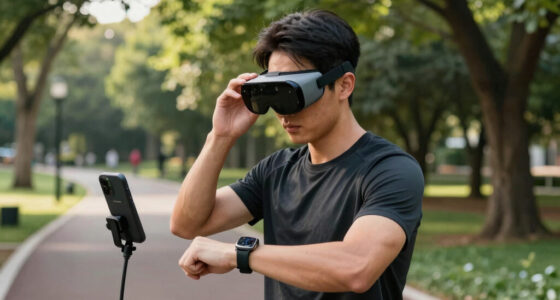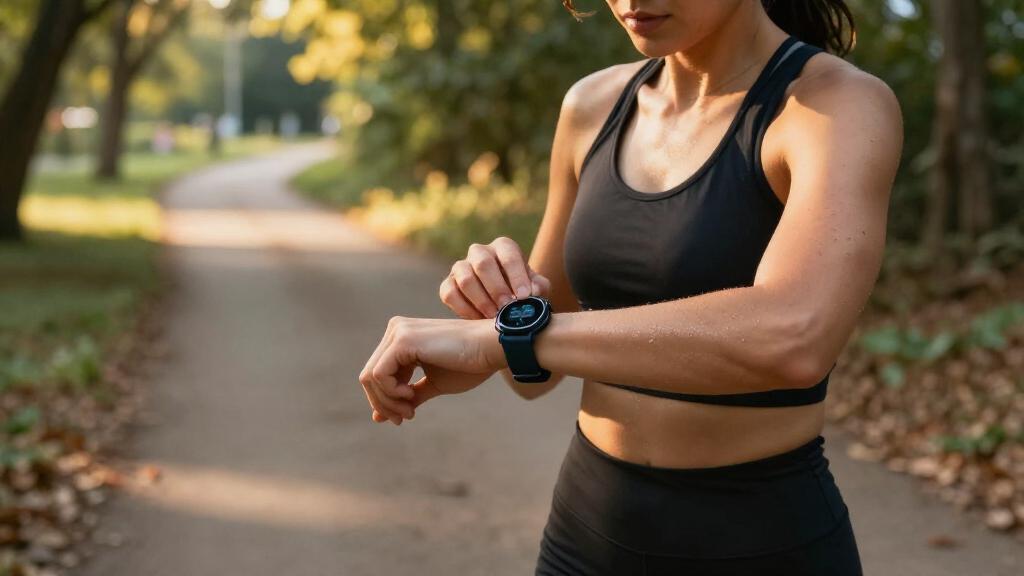
Set up your smart fitness watch, connect it to your phone, and use it to track activity, workouts, and selected health measures. This guide is for first-time watch users and covers the basic setup, fit, settings, and checks that help you tell whether tracking is working. Allow 30-60 minutes for setup; learning your normal trends takes several days.

Get workout gear delivered free with Prime
- Fast, free delivery on millions of items
- Prime Video, Amazon Music and more included
- Member-only deals all year
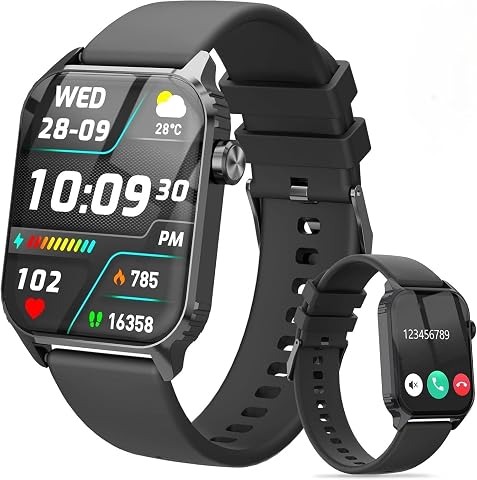
TRAUSI TG08 Smartwatch with 1.83" HD Display, Bluetooth Calling, IP67 Waterproof, Heart Rate & Sleep Tracker
- ✔ Display: 1.83-inch LCD, 240 × 284
- ✔ Workout modes: More than 120 listed
- ✔ Battery: 350 mAh; stated 5–7 days in normal use

T7 Smart Watch for Women with Bluetooth Calling, 1.83" HD Screen, and 2 Bands
- ✔ Display: 1.83-inch HD touchscreen with 2.5D glass
- ✔ Battery: Up to 10 days stated; approximately 2-hour charging time
- ✔ Water resistance: IP67
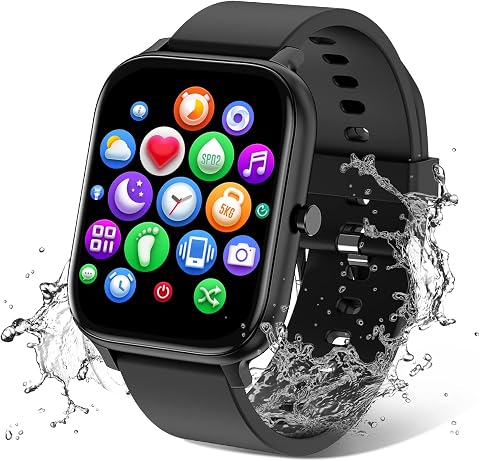
Torjalph Smart Watch for Men and Women (Black)
- ✔ Display: 1.69-inch full-touch screen, 240 × 280
- ✔ Model: TS29/Q50
- ✔ Battery: 230 mAh; stated 5–7 days
Difficulty: Beginner | Time: 30-60 minutes, plus several days to learn your usual readings
What You’ll Need
Tools & Materials:
- Smart fitness watch and its charging cable or dock
- Compatible smartphone with Bluetooth and internet access
- The watch maker’s companion app
- A charger or USB power source
Knowledge:
- Basic ability to install a phone app and follow on-screen prompts
- Your phone’s passcode or account sign-in details, if requested
Check the watch packaging or manufacturer’s website for phone and operating-system compatibility. Charge the watch before setup. Health features vary by model and region; use the device instructions to learn what its sensors measure and what they cannot diagnose.
TRAUSI TG08 Smartwatch with 1.83" HD Display, Bluetooth Calling, IP67 Waterproof, Heart Rate & Sleep Tracker
The TRAUSI TG08 earns the top spot by pairing a broad selection of workouts with the everyday features many buyers want in one watch. Its more than 120 workout modes give active users more options than the Torjalph’s 12 listed sports modes, while continuous heart-rate and sleep tracking cover common daily metrics. Bluetooth calling and Alexa add convenience, although both depend on having the watch paired and set up with a compatible phone.Its practical compromise is location tracking: GPS relies on the connected smartphone, so this is not the choice for recording routes while leaving your phone at home. The IP67 rating also makes it better suited to splashes and rain than swimming. Compared with the T7, it gives up the longer stated battery life and dedicated menstrual cycle tracking, but offers more workout modes and Alexa. Expect a utilitarian plastic case rather than a premium-feeling finish.
Pros:
- Lists more than 120 workout modes for varied activity tracking.
- Supports Bluetooth calling and Alexa integration.
- Tracks heart rate and sleep continuously, according to the product description.
- Works with compatible iOS and Android phones.
Cons:
- GPS depends on a connected smartphone; no built-in GPS is listed.
- IP67 water resistance is not presented as suitable for swimming.
- Plastic case may feel less premium than a metal design.
Best for: Buyers who want a wide selection of workout modes, everyday health tracking, and Alexa and calling features in a phone-connected watch.
Not ideal for: Runners who want built-in GPS, swimmers seeking a watch specifically suited to swim tracking, or buyers who prioritize a metal case.
Bottom line: We recommend the TRAUSI TG08 for buyers who value workout variety and connected features more than phone-free GPS or swim-focused use.
“We recommend the TRAUSI TG08 for buyers who value workout variety and connected features more than phone-free GPS or swim-focused use.”
T7 Smart Watch for Women with Bluetooth Calling, 1.83" HD Screen, and 2 Bands
The T7 has the clearest specialist role in this group: it combines standard heart-rate, blood-oxygen, and sleep monitoring with dedicated menstrual cycle tracking. That makes it more tailored to buyers who want cycle information alongside everyday activity data. Its stated battery life of up to 10 days is longer than the TRAUSI’s 5–7 day normal-use estimate and the Torjalph’s 5–7 day claim, though calling and monitoring settings may affect actual runtime.The 1.83-inch screen matches the TRAUSI’s listed size, and Bluetooth calling adds a useful phone-connected feature. But the T7 has no built-in GPS, and its IP67 rating is not intended for swimming. There is also an unresolved detail in the supplied information: the description calls the build aluminum, while the specifications list plastic. We would not choose it on the assumption that it has an aluminum case without confirming that detail. Compared with the TRAUSI, the T7 trades Alexa and a much larger workout-mode count for its cycle-tracking focus and longer battery claim.
Pros:
- Includes dedicated menstrual cycle tracking and female health monitoring features.
- Claims up to 10 days of battery life.
- Supports Bluetooth calling with a built-in speaker and microphone.
- Includes two bands and a 1.83-inch touchscreen.
Cons:
- No built-in GPS is listed.
- IP67 rating is limited to splash and rain protection, not swimming.
- Case material is inconsistent in the supplied details: aluminum in the description, plastic in the specs.
Best for: Buyers who want menstrual cycle tracking alongside everyday health metrics, Bluetooth calling, and a longer stated interval between charges.
Not ideal for: Swimmers, people who need phone-free route tracking, or buyers who require confirmed case-material details before purchasing.
Bottom line: We would choose the T7 for cycle tracking and its longer stated battery life, provided its case material and water-use limits fit our needs.
“We would choose the T7 for cycle tracking and its longer stated battery life, provided its case material and water-use limits fit our needs.”
Torjalph Smart Watch for Men and Women (Black)
The Torjalph is the option to consider when water resistance carries more weight than an extensive workout library. It lists an IP68 rating, compared with IP67 for the T7 and TRAUSI, and the provided description says it allows swimming and rain resistance. That makes its stated protection the strongest in this lineup. Buyers should still check the product’s own instructions for limits on depth, duration, and water activities.For fitness tracking, the Torjalph covers the basics with 12 sports modes and heart-rate, blood-pressure, and blood-oxygen monitoring. Its 1.69-inch display is smaller than the 1.83-inch screens on the other two watches, which may suit buyers who want a less expansive face but gives less screen area for glanceable information. The stated 5–7 day battery life is similar to the TRAUSI’s normal-use claim. Compared with that watch, Torjalph gives up workout variety and Alexa; compared with the T7, it lacks the listed menstrual cycle feature and the longer battery claim. Full functionality also requires the Da Fit app.
Pros:
- Lists an IP68 water-resistance rating and describes swimming and rain resistance.
- Includes Bluetooth calling and app message notifications.
- Tracks heart rate, blood pressure, and blood oxygen, according to the description.
- Uses magnetic charging and claims 5–7 days of battery life.
Cons:
- Lists 12 sports modes, far fewer than the TRAUSI’s more than 120.
- Full functionality requires the Da Fit app.
- Its 1.69-inch, 240 × 280 display is smaller than the other watches’ listed screens.
Best for: Buyers who want the strongest listed water-resistance rating in this group and can work within a smaller selection of sports modes.
Not ideal for: People who want a large workout library, Alexa integration, a larger screen, or to avoid installing a companion app.
Bottom line: We would pick the Torjalph when its IP68 rating matters more than workout variety, screen size, or app independence.
“We would pick the Torjalph when its IP68 rating matters more than workout variety, screen size, or app independence.”
As an Amazon Associate we earn from qualifying purchases.
Before You Start
Wear the watch snugly, with its sensor resting against your skin, but not so tightly that it causes discomfort or restricts circulation. Follow the maker’s fit instructions, especially for workout tracking. Decide which notifications and health features you actually want; enabling every alert can drain the battery and interrupt your day. A watch’s readings are estimates and should not replace medical advice.
Step-by-Step Instructions
Step 1: Charge and turn on the watch
Connect the watch to its supplied charger and let it charge until it has enough power for setup. Press and hold its power or main button until the screen lights up. Choose your language and region when prompted.
Tip:Charging docks and cable connectors can be model-specific. Seat the watch firmly on the supplied charger and check for a charging symbol.
Check: The display turns on, shows a setup prompt, and indicates that the watch is charging or has charge available.
Step 2: Install the companion app
On your phone, open its official app store, find the app named in the watch instructions, and install it. Open the app and sign in or create an account if required. Grant only the permissions needed for features you plan to use, such as Bluetooth for pairing or notifications for alerts.
Tip:Use the manufacturer’s official app. A third-party app with a similar name may not support setup or firmware updates.
Check: The app opens to a setup screen or device list and is ready to add a watch.
Step 3: Pair the watch with your phone
Keep the watch and phone close together. Turn on Bluetooth on the phone, then choose the app’s option to add or pair a device. Select your watch from the list and compare any pairing code shown on both screens. Confirm the code on the phone and watch when asked.
Tip:Pair through the companion app unless the manufacturer’s instructions say otherwise. Pairing directly from the phone’s Bluetooth settings can prevent the app from completing setup.
Check: The app names the connected watch, and the watch shows that it is paired or synced.
Step 4: Complete the personal setup
Follow the app prompts to set your profile details, units, time format, and wrist preference. Enter accurate details where the app requests them for activity estimates. Review privacy choices and enable the features you want, such as sleep tracking or heart-rate monitoring.
Tip:Some measurements depend on profile details and sensor contact. If a field is optional and you prefer not to share it, check whether you can leave it blank.
Check: The app shows your profile and watch settings, and the time and units on the watch match your preferences.
Step 5: Adjust the watch fit and display
Fasten the band so the sensor on the underside stays against your skin during normal movement. Try the watch on the wrist setting selected in the app. Set screen brightness, wake behavior, and a watch face that makes the information you use easiest to read.
Tip:For workouts, the watch may need a slightly snugger fit than during rest. Follow its fit guidance and loosen it afterward if needed.
Check: The watch stays in place during arm movement, feels comfortable, and its screen is readable in your usual lighting.
Step 6: Choose activity and health settings
Open the app’s activity or health settings and choose the measures you want to track, such as daily steps, active minutes, heart rate, or sleep. Set a realistic daily activity goal. Review any reminders, such as movement prompts, and turn on only those that suit your routine.
Tip:Goals are starting points. Choose a manageable target and adjust it after you have several days of typical readings.
Check: The selected measures and goal appear in the app or on the watch, and unnecessary reminders are off.
Step 7: Set notifications and safety preferences
In the app, select which phone notifications may appear on the watch. Check call, message, and app alert settings, then test a permitted alert. Review emergency or health alert options in the watch instructions and configure them only if available and appropriate for your region.
Tip:Notification access may expose message previews on your wrist. Use privacy or preview controls if other people may see the screen.
Check: A test notification appears as expected, and alerts you do not want stay off.
Step 8: Update and sync the watch
With the watch charged and connected to the phone, check the companion app for a software update. Install it according to the on-screen instructions, keeping the devices close and connected until it finishes. Then open the app and allow the watch to sync.
Tip:Do not remove the watch from its charger or close the update screen if the manufacturer says to keep it powered during installation.
Check: The app reports that the update is complete or that the software is current, and the latest sync time changes.
Step 9: Record a short test workout
On the watch, open the workout or exercise menu and select an activity that matches what you are about to do. Start a short walk or other light session. Keep the watch fitted as instructed, then end and save the workout from the watch or app.
Tip:Outdoor GPS activities may need a clear view of the sky and time to find a signal. Wait for a location-ready indicator if the watch provides one.
Check: The saved workout appears in the app with an activity type, duration, and available measurements. Check that the duration is plausible.
Step 10: Review the first day of data
Wear the watch during your usual routine and sync it at least once. Open the app to review activity totals, sleep data if enabled, and any recorded workouts. Compare the results with what you remember doing, and note gaps or obviously implausible readings before changing settings.
Tip:One day of data may not represent your normal pattern. Give the watch several days of regular wear before treating trends or goals as useful baselines.
Check: The app shows recent synced readings, and you can identify where to view daily activity and workout history.
Common Mistakes to Avoid
- Pairing the watch in the phone’s Bluetooth menu before starting setup in the companion app. — Begin pairing from the official app and follow its prompts so the app can register the device.
- Wearing the watch too loosely or over clothing during exercise. — Place the sensor against skin and adjust the band to the fit guidance for your model and activity.
- Turning on every notification and reminder during setup. — Choose only useful alerts, then add others later if you find you need them.
- Treating a single reading or day of data as a reliable health assessment. — Use readings as estimates and look at patterns over time; ask a health professional about medical concerns.
Troubleshooting
Problem: The phone cannot find the watch during pairing.
Solution: Move the devices close together, confirm Bluetooth is on, and check that the watch is in pairing mode. Restart both devices if needed. If it was paired previously, remove the old connection using the manufacturer’s instructions, then try from the app again.
Problem: The watch pairs but does not sync.
Solution: Open the companion app, confirm Bluetooth is enabled, and keep the phone near the watch while the app is open. Check for app updates and any phone permission the app identifies as missing.
Problem: Heart-rate or activity readings are missing or look implausible.
Solution: Check that the sensor is clean and against your skin, adjust the band to the maker’s recommended fit, and confirm the feature is enabled. Try another short session. Stop using the watch and consult its support instructions if it causes irritation.
Problem: The battery drains faster than expected.
Solution: Review screen brightness, always-on display, GPS use, frequent notifications, and continuous sensor settings. Turn off features you do not use and check the manufacturer’s guidance for expected battery life.
What Success Looks Like
Your watch is paired with the companion app, uses your preferred settings, and syncs recent data. A saved test workout appears with a plausible duration, and you can find the activity history in the app. The watch sits comfortably and its selected alerts and tracking features behave as expected. Treat health readings as estimates, not diagnoses.
Next Steps
Wear and sync the watch regularly for several days, then adjust activity goals based on your normal routine. Clean the sensor and band as directed by the manufacturer, charge the watch before long activities, and review notification settings when your needs change. If a feature continues to fail, consult the model’s support guide or contact the manufacturer.
Frequently Asked Questions
Do I need to keep Bluetooth on for the watch to track activity?
Many watches can record activity on the watch and sync it later, but phone notifications and live syncing usually need a connection. Check your model’s instructions for offline tracking limits.
Can I wear the watch while sleeping?
Many models support sleep tracking if the feature is enabled and the watch has enough battery. Wear it comfortably and follow the maker’s cleaning and skin-care guidance.
Why does the watch show different step counts from my phone?
Devices may use different sensors, algorithms, and wear locations, so totals can differ. Wear the watch consistently and use one device as your main reference when comparing daily trends.
Can a smart fitness watch diagnose a health problem?
No. Consumer watch measurements are estimates and do not replace a medical exam or professional advice. Contact a health professional about symptoms or concerning readings.