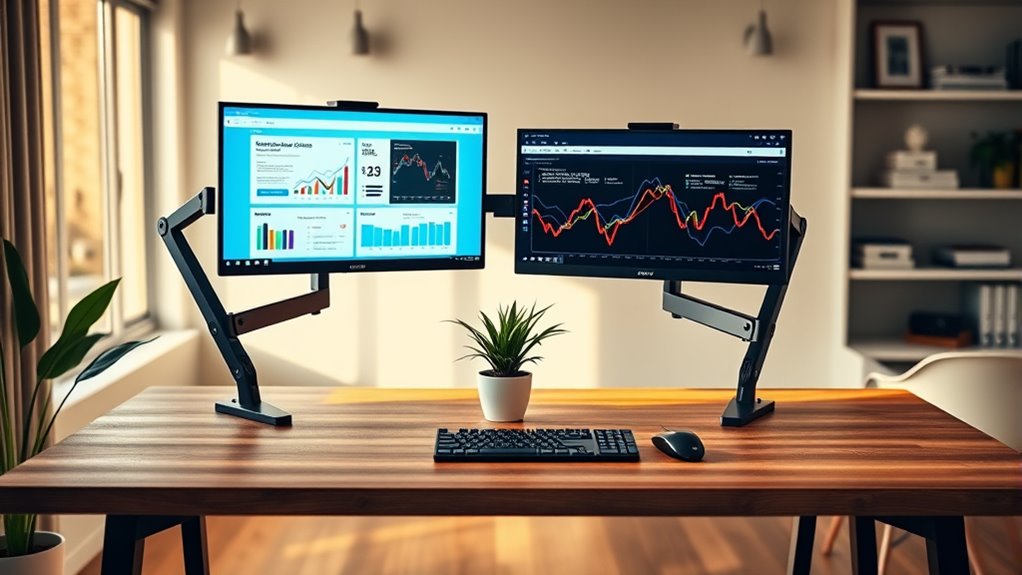

To set up dual monitors in your home office, start by choosing adjustable stands or arms for proper positioning and keep the primary monitor in front of you at eye level. Organize cables with clips or sleeves to prevent clutter, and place frequently used items within easy reach. Adjust monitor height and angle for comfort, ensuring your workspace remains functional and tidy. Keep exploring for more tips to optimize your dual monitor setup effectively.
Key Takeaways
- Choose compatible monitors and connect them using HDMI, DisplayPort, or VGA cables.
- Position monitors at eye level and use adjustable stands or arms for ergonomic comfort.
- Organize cables with clips or sleeves to keep your workspace tidy and safe.
- Arrange monitors with the primary in front and secondary angled for multitasking efficiency.
- Test and adjust monitor height, angle, and cable routing to optimize comfort and productivity.
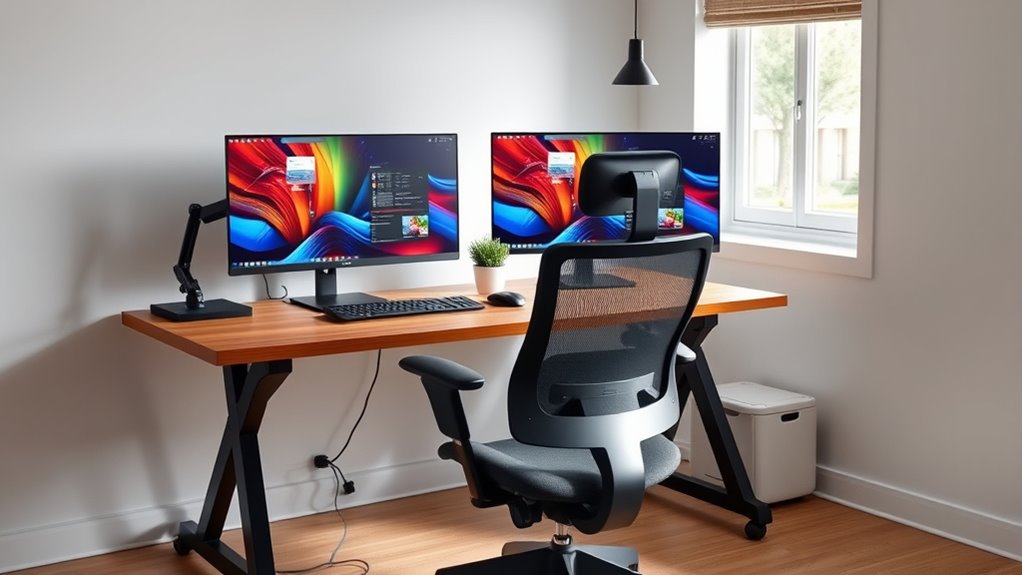
Upgrading your home office doesn’t have to be complicated or expensive. One of the most effective improvements you can make is setting up dual monitors. This setup boosts productivity by giving you more screen real estate, making multitasking easier and more efficient. To get started, consider investing in ergonomic accessories like adjustable monitor stands or arms. These tools allow you to position your screens at eye level, reducing neck strain and promoting better posture. Proper placement is vital; if your monitors are too low or too high, you’ll likely develop discomfort over time. Adjustability ensures you can find the perfect viewing angle and keep your workspace comfortable.
In addition to ergonomic accessories, cable management tips are indispensable to create a clean, organized workspace. As you add a second monitor, the number of cables increases, often leading to clutter that can distract or even cause accidents. Use cable clips, sleeves, or under-desk trays to keep cords neatly tucked away. Labeling cables can also help you quickly identify and troubleshoot connections when needed. A tidy desk not only looks professional but also improves focus and reduces stress, making it easier to work efficiently.
When setting up your dual monitors, think about placement carefully. Position them side-by-side, with the primary monitor directly in front of you and the secondary slightly angled. This arrangement minimizes neck movement and helps you switch focus seamlessly. If desk space is limited, consider mounting the monitors on adjustable arms. This frees up surface area and allows you to easily move screens closer or farther as needed. Remember to align the tops of the monitors at your eye level to prevent strain and encourage neutral neck positioning.
Your workspace should also accommodate your workflow. Keep frequently used items within arm’s reach, and organize cables so they don’t interfere with your mouse, keyboard, or other peripherals. Make sure your keyboard and mouse are positioned correctly—your elbows should be close to your sides, and your wrists straight—to maximize comfort during long work sessions. Incorporate ergonomic accessories like wrist rests or footrests if necessary to further enhance your setup. Additionally, understanding ergonomic principles can help you optimize your workspace for comfort and safety.
Finally, test your dual monitor setup for comfort and efficiency. Spend a few minutes working in the new configuration, adjusting the height, angle, and cable routing as needed. Small tweaks can make a noteworthy difference in comfort and productivity. By combining ergonomic accessories with smart cable management tips, you’ll create a home office environment that’s not only functional but also comfortable and inviting. With these adjustments, setting up dual monitors becomes a straightforward process that greatly elevates your work experience.

ErGear Single Monitor Arm, Fully Adjustable Monitor Mount for 13–34 Inch Screens, Fast Install Computer Monitor Stand with Tool-Free VESA Mount, Cable Management, Holds 19.8 lbs, Max VESA 100x100mm
- Compatibility: Fits 13–34 inch monitors up to 19.8 lbs
- VESA Support: Supports 75x75mm and 100x100mm patterns
- Durable Construction: Tested over 20,000 cycles for longevity
As an affiliate, we earn on qualifying purchases.
As an affiliate, we earn on qualifying purchases.
Frequently Asked Questions
What Are the Best Monitor Sizes for Small Desks?
For small desk ergonomics, opt for monitors around 24 inches or smaller to maximize space and comfort. These sizes fit well without cluttering your workspace. When setting up, follow monitor placement tips like positioning screens at eye level and keeping them close to avoid strain. This helps you maintain good posture and efficiency, making your small desk more functional and comfortable for daily use.
How Do I Reduce Glare on Dual Monitors?
Did you know 60% of workers report eye strain from glare? To reduce glare on your dual monitors, focus on monitor positioning—place screens perpendicular to windows to avoid direct reflections. Adjust brightness and contrast settings, and consider anti-glare screens or matte finishes. Keep light sources indirect, and use curtains or blinds if needed. These steps help lessen glare and improve comfort during long work sessions.
Can I Use Different Brands of Monitors Together?
Yes, you can use different brands of monitors together, but brand compatibility isn’t guaranteed. To create a cohesive look, focus on matching color profiles and calibration settings. Check if both monitors support the same connection type and resolution for seamless performance. While mixing brands is possible, investing time in color matching and ensuring compatibility helps prevent visual inconsistencies and maximizes your dual monitor setup’s effectiveness.
What Is the Optimal Monitor Height for Ergonomic Setup?
You should set your monitor height so that the top of the screen is at or just below eye level, promoting ergonomic posture tips. Use monitor height adjustment features or a stand to achieve this. Keep your neck straight and relax your shoulders while working. Proper monitor height prevents strain, reduces fatigue, and enhances comfort, making your workspace more efficient and healthier over long periods.
How Do I Connect Dual Monitors to a Laptop?
You connect dual monitors to your laptop using compatible cables like HDMI, DisplayPort, or USB-C, depending on your laptop’s ports. After plugging them in, manage your cables for a tidy workspace. Then, go to display settings to extend your desktop across both screens. Don’t forget to calibrate your monitors for accurate colors and brightness. This setup enhances productivity while keeping your workspace organized and visually optimized.

HUANUO FlowLift™ Dual Monitor Stand, Fully Adjustable Gaming Monitor Desk Mount for 13–32″ Computer Screens, Full Motion VESA 75×75/100×100 with C-Clamp & Grommet Base, Each Arm Holds 4.4 to 19.8 lbs
- Monitor Compatibility: Supports 13-32 inch, 4.4-19.8 lbs, VESA 75×75/100×100
- Desk Compatibility: Fits wooden desks 0.59-3.54 inches thick
- Secure Mounting: Dual C-clamp and grommet options for stability
As an affiliate, we earn on qualifying purchases.
As an affiliate, we earn on qualifying purchases.
Conclusion
Upgrading to dual monitors can transform your work from frustrating to efficient. Imagine you’re juggling multiple projects and suddenly, everything’s within reach on two screens—no more constant window switching. Take Sarah, a freelance designer, who doubled her productivity after setting up her dual monitors. It’s a simple change that can make a big difference. So, go ahead—upgrade your home office and experience the clarity and efficiency you deserve.

SOULWIT 50Pcs Self Adhesive Cable Management Clips – Black
- Easy to Use: Stick, open tab, insert cables, close
- Premium Material: Eco-friendly, anti-static, durable Polyamide66
- Universal Adhesion: Adheres to desks, walls, wood, ceramics, metal
As an affiliate, we earn on qualifying purchases.
As an affiliate, we earn on qualifying purchases.

WALI Computer Monitor Stand for Desk, Adjustable Laptop Riser, up to 44 lbs
- Large Metal Shelf: Fits most screens, laptops, printers
- Supports Up to 44 lbs: Heavy-duty, durable construction
- Non-slip Rubber Pads: Protects surfaces, prevents slipping
As an affiliate, we earn on qualifying purchases.
As an affiliate, we earn on qualifying purchases.